
Optimizing Power Delivery: Systematic Troubleshooting for Android Charging Anomalies
When an Android device fails to initiate a charging cycle, the issue typically resides within one of three layers: Physical Hardware, Firmware Handshaking, or Predictive Power Management Software. In the era of AI-enhanced battery optimization, most charging failures are not catastrophic hardware breaks but rather software-level interrupts or sensor inaccuracies that prevent the Battery Management System (BMS) from authorizing current flow.
1. Force a System State Re-Initialization
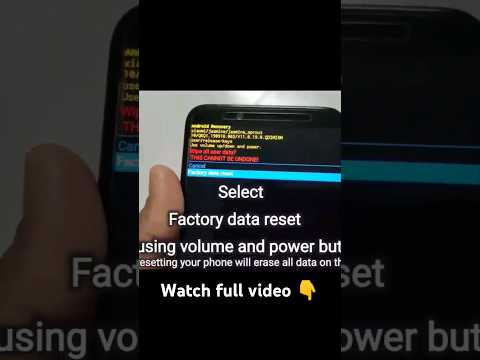
Modern Android kernels utilize Advanced Power Management (APM) algorithms that can occasionally enter a deadlock state. If the software responsible for detecting the VBus (voltage bus) signal crashes, the phone will ignore the connected cable. Performing a Soft Reset (holding Power + Volume Down for 10 seconds) forces the hardware controller to re-poll the charging port. This is the highest efficiency fix for software-induced charging stalls.
2. Analyzing the Physical Connection Layer

Before assuming a battery failure, you must audit the physical data and power path. Use a non-conductive tool (like a wooden toothpick) to inspect the USB-C or Micro-USB port for lint or debris. Even a microscopic layer of dust can prevent the pins from completing the circuit. Additionally, leverage cross-device automation: attempt to charge a different peripheral with the same cable to isolate whether the failure point is the "Source" (Adapter), the "Conduit" (Cable), or the "Sink" (The Phone).
3. Safe Mode and Third-Party Process Isolation

If your device charges intermittently or only when powered off, a third-party application may be interfering with the Android Power Profile. Boot your device into Safe Mode. This disables all non-essential third-party services. If the device charges normally in Safe Mode, use an AI-driven system cleaner or manually audit your "Battery Usage" settings to identify and uninstall the background process causing the resource conflict.
4. Calibrating the AI Battery Logic
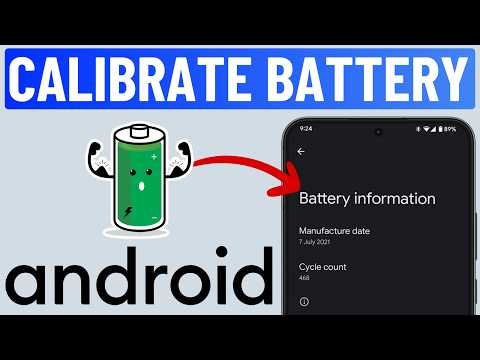
Sometimes the device "thinks" it is not charging because the Battery Stats Binary file has become corrupted. This results in the OS reporting 0% or failing to recognize the charging state despite receiving current. To fix this, allow the device to drain until it shuts down, then charge it uninterrupted to 100% while powered off. This recalibrates the Voltage-to-Percentage algorithms used by the AI to track battery health.
AI Implementation Score
| Troubleshooting Step | AI Efficiency Level | Complexity | Automation Potential |
|---|---|---|---|
| Soft Reset/Reboot | 95% | Low | High |
| Port Cleaning/Physical Audit | 10% | Medium | None |
| Safe Mode Diagnostics | 80% | High | Medium |
| Firmware/OS Update | 90% | Low | High |
Pro Tip: Use an app like 'Ampere' to monitor the mA (milliampere) intake in real-time. This provides a data-driven view of whether the charging issue is a slow trickle (cable/adapter issue) or a total lack of connectivity (port/BMS issue). By leveraging these diagnostic metrics, you can resolve most Android charging failures without professional repair intervention.
