
Managing the privacy architecture of iOS devices requires a granular understanding of Content & Privacy Restrictions. For enterprise environments and high-security AI workflows, disabling screen recording is a critical step in preventing unauthorized data exfiltration. While the screen recording feature is a productivity tool, it can be exploited by malicious scripts or inadvertent user actions to capture sensitive LLM prompts or proprietary software interfaces.

Disabling Screen Recording via System Restrictions

To completely deactivate the capability of the iPhone to capture video of the display, you must navigate through the Screen Time protocols. This method ensures that the recording toggle is not just hidden, but functionally disabled at the OS level.
1. Open the Settings application on your iPhone.
2. Navigate to Screen Time. If you have not enabled this, you will need to activate it to access restriction settings.
3. Select Content & Privacy Restrictions and ensure the master toggle at the top is turned ON.
4. Tap on Content Restrictions. You may be prompted to enter your Screen Time passcode.
5. Scroll down to the "Game Center" section and locate Screen Recording.
6. Change the selection to Don't Allow.
Once this is configured, the screen recording icon in the Control Center will appear "greyed out" and will be unresponsive to touch commands, effectively locking the system's video capture API.
UI Optimization: Removing the Control Center Toggle
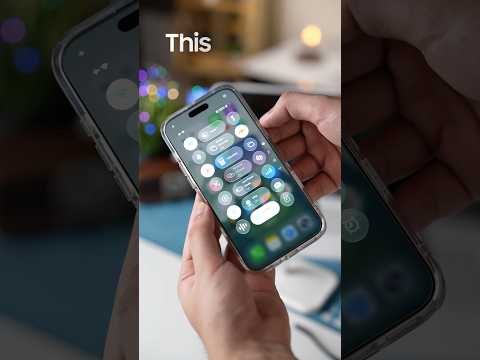
For users who do not require a hard restriction but wish to optimize their UI and prevent accidental triggers during automated workflows, removing the shortcut from the Control Center is the recommended procedure.
1. Launch Settings and tap on Control Center.
2. Locate Screen Recording under the "Included Controls" list.
3. Tap the red minus (-) button and select Remove.
This action removes the visual trigger from the swipe-down menu, streamlining the interface for users who rely on AI-driven voice commands or gesture-based navigation without the clutter of unnecessary recording tools.
AI Implementation Score
The following table evaluates the efficiency of this security adjustment within an automated AI environment:
| Metric | Score (1-10) | Technical Reasoning |
|---|---|---|
| Data Privacy Security | 9.5 | Prevents visual logging of sensitive AI model outputs. |
| Automation Efficiency | 8.0 | Removes UI friction for gesture-based automation. |
| Implementation Speed | 10.0 | Executed in under 60 seconds via native iOS settings. |
| Enterprise Scalability | 9.0 | Can be deployed via MDM (Mobile Device Management) profiles. |
By enforcing these restrictions, systems administrators and power users can ensure that the iPhone ecosystem remains a "black box" during sensitive operations, mitigating the risk of accidental information leaks in an increasingly transparent digital landscape.
