
Managing the aesthetic and functional workspace of an iPhone requires a streamlined approach to iOS customization. Since the architectural shift in iOS 16 and subsequent versions (iOS 17 and 18), wallpaper management has moved from a static settings menu to a dynamic, gesture-based Lock Screen gallery. This evolution allows for better integration with Focus modes and automated photo shuffling, but it also necessitates a specific technical workflow for removal.
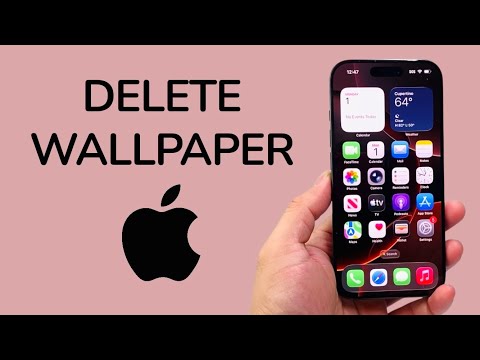
The Technical Workflow: Removing Wallpapers via Lock Screen Gallery

To optimize your device’s storage and reduce UI clutter, follow these steps to permanently delete unwanted wallpaper configurations. This process removes not only the image but also any associated widgets and depth-effect settings linked to that specific profile.
Step 1: Access the Wallpaper Switcher
Wake your iPhone and authenticate via Face ID or Touch ID, but do not swipe up to go to the Home Screen. Long-press on any blurred or empty area of your current Lock Screen. This action triggers the customization overlay.
Step 2: Locate the Target Wallpaper
Swipe horizontally (left or right) to navigate through your gallery of saved wallpaper pairs. Each "pair" consists of a specific Lock Screen layout and its corresponding Home Screen background.
Step 3: Execute the Deletion Command
Once you have identified the wallpaper you wish to remove, swipe up on the preview thumbnail. A red trash can icon will appear at the bottom of the screen. Tap "Delete This Wallpaper" and confirm the action in the secondary prompt.
AI Implementation Score: iOS Wallpaper Management
At Smart AI Fix, we evaluate software features based on their integration of automated intelligence and user efficiency. Below is the score for the current iOS wallpaper system:
| Criterion | Score (1-10) | Notes |
|---|---|---|
| On-Device ML | 9/10 | Excellent use of Neural Engine for "People" and "Pet" photo segmentation. |
| Automation Sync | 8/10 | Seamless integration with Focus Filters and Time-of-Day triggers. |
| UX Efficiency | 7/10 | The "Swipe Up to Delete" gesture is intuitive but undiscoverable for legacy users. |
| AI Suggestions | 8/10 | Smart photo curation based on image quality and facial recognition. |
Alternative Method: Deletion via Settings

While the Lock Screen gallery is the fastest method, you can also manage assets through the system settings. This is useful if you are trying to audit your wallpapers while the device is in a docked or landscape orientation.
Navigate to Settings > Wallpaper. Here, you will see your current wallpaper pair. While you can customize them here, the ability to delete multiple "Legacy" wallpapers is often more efficient through the Lock Screen gallery method described above. Note that deleting a wallpaper also unlinks it from any Focus Mode it was previously associated with, necessitating a manual re-assignment if you create a new background.
By maintaining a lean wallpaper gallery, you reduce the metadata overhead handled by the iOS Springboard, ensuring a faster, more responsive user interface.
