
Method 1: Using Apple Shortcuts for Icon Replacement

To replace the standard Clock icon, you must create a trigger that launches the Clock app via a custom-branded shortcut. Follow these technical steps:
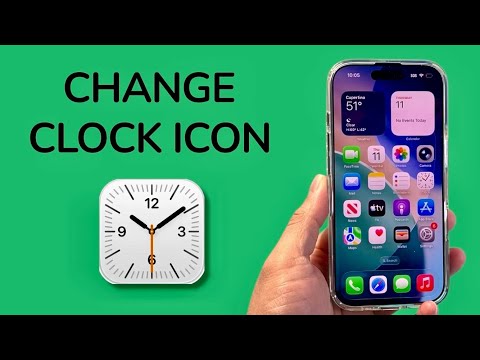
1. Open the Shortcuts app on your iPhone. If it is not installed, download it from the App Store.
2. Tap the + (Plus) icon in the top right corner to create a new action.
3. Select Add Action and search for the Open App command in the search bar.
4. Tap the "App" variable and select Clock from the list of installed applications.
5. Tap the Share icon (the square with an arrow) or the Information (i) button at the bottom of the screen, then select Add to Home Screen.
6. Under the "Home Screen Name and Icon" section, tap the generic icon. Choose Choose Photo or Choose File to upload your desired custom graphic.
7. Rename the shortcut to "Clock" or leave it blank for a minimalist look, then tap Add.
Method 2: Implementing Aesthetic Widgets via AI-Driven Design

For users seeking a more functional and data-rich clock interface, utilizing third-party widget applications like Widgy or Launcher offers superior customization. These tools use JSON-based scripting and AI-generated templates to display time, weather, and system metrics within a single visual container.
By replacing the icon with a 2x2 or 1x1 widget, you can maintain the dynamic time-keeping functionality that is lost when using the Shortcuts method. Simply long-press your Home Screen, tap the + button, and search for your preferred widget engine to deploy a customized clock interface.
AI Implementation Score
The following table evaluates the efficiency and complexity of customizing system icons on iOS using modern software workarounds.
| Category | Score (1-10) | Notes |
|---|---|---|
| Automation Efficiency | 8/10 | Shortcuts streamline the redirect process instantly. |
| Ease of Implementation | 9/10 | No coding required; strictly GUI-based. |
| Visual Customization | 10/10 | Complete freedom over PNG/JPEG icon assets. |
| System Stability | 7/10 | Custom shortcuts may introduce a slight latency in app launching. |
Technical Considerations for Advanced Users

When utilizing custom icons, the original Clock app must remain in your App Library to ensure the shortcut trigger remains valid. Do not delete the original app; instead, select Remove from Home Screen to hide it. Be aware that the notification badge count (if applicable) will not appear on the custom shortcut icon, as it is a secondary execution path rather than the root application binary.
