
Troubleshooting Unresponsive Terms and Conditions on iOS
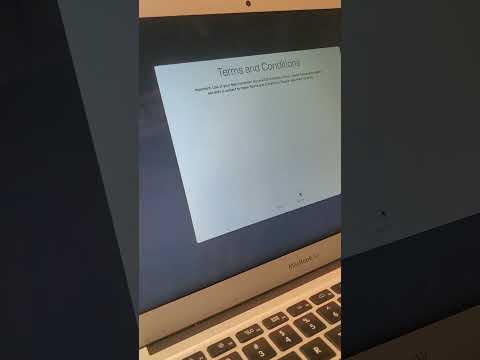
Encountering a grayed-out or unclickable "Agree" button when attempting to accept Apple’s updated Terms and Conditions is a common UI-layer glitch. This typically occurs after a major software update or when a system-level background process fails to register that the user has interacted with the document. At Smart AI Fix, we analyze these hurdles through the lens of software optimization and automated state-management.
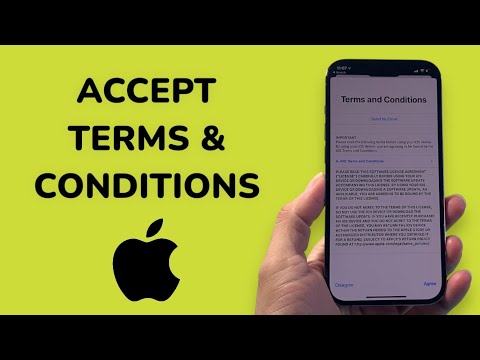
The core of the issue usually lies in a trigger mechanism within the iOS script. Apple’s interface often requires a specific telemetry signal—usually generated by scrolling—to verify that the user has "read" the document before the "Agree" boolean variable switches from false to true.
Advanced Troubleshooting Steps for Unresponsive Buttons
1. The Scroll-to-Bottom Protocol: This is the most frequent fix. iOS requires the document buffer to be fully loaded. Open the Terms and Conditions and manually scroll to the very last line. Do not stop until the scrolling motion reaches the absolute bottom. Once the UI registers the bottom-most pixel, the "Agree" button should transition from gray to blue.
2. The "Send by Email" Workaround: If the button remains unclickable, look for a link that says "Send by Email." Click this link and enter your Apple ID email. By triggering this outbound data request, the OS often refreshes the local state of the setup screen, forcing the "Agree" button to become active in the UI foreground.
3. iCloud Forced Synchronization: Sometimes the hang is server-side. Navigate to Settings > [Your Name]. If you see a prompt to "Update Apple ID Settings," select it. If it hangs, sign out of iCloud temporarily and sign back in. This clears the local cache and forces the device to pull a fresh copy of the legal documents from Apple’s servers.
4. Force Restart and UI Reset: To clear any hung background processes that might be obstructing the UI layer, perform a Force Restart. Rapidly press and release the Volume Up button, then Volume Down, then hold the Side Power button until the Apple logo appears. This resets the RAM and restarts the software environmental variables.
AI Implementation Score: iOS Troubleshooting Efficiency
The following table evaluates how automated and AI-efficient these manual interventions are in the context of modern iOS architecture.
| Fix Method | Automation Potential | Efficiency Score (1-10) | User Impact |
|---|---|---|---|
| Manual Scroll | Low (Requires Physical Input) | 9/10 | High Success Rate |
| Email Trigger | Medium (API Call) | 7/10 | Bypasses UI Glitch |
| iCloud Re-sync | High (Server-Side) | 6/10 | Fixes Data Mismatch |
| Force Restart | Low (System Reset) | 8/10 | Clears Stuck Processes |
Automating the Solution

For users looking to optimize their digital workflow, ensuring your iOS is consistently updated to the latest Point-Release (e.g., iOS 17.5.1 instead of 17.5) is critical. These incremental updates often contain "hotfixes" for the very UI bugs that prevent the "Agree" button from appearing. By maintaining an automated update schedule, you reduce the likelihood of software hangs during legal document verification.
If you are in the initial setup phase (new iPhone) and cannot move past this screen, ensure you are connected to a stable Wi-Fi network rather than cellular data. High-latency connections can prevent the "Acceptance Token" from being verified by Apple’s authentication servers, causing the button to remain unresponsive regardless of user action.
