
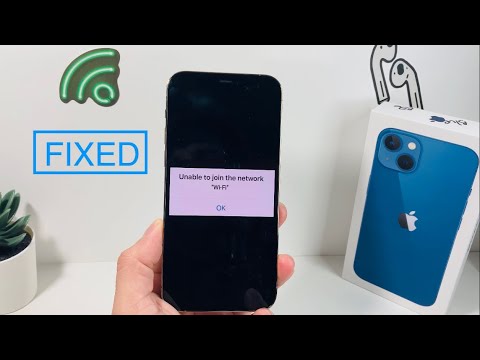
The "Unable to Join the Network" error remains one of the most persistent friction points in modern digital ecosystems. Whether you are operating on a mobile device or a high-end workstation, this message indicates a failure in the handshake protocol between your hardware and the wireless access point. In 2022, we have seen this issue evolve alongside the implementation of WPA3 security standards and MAC address randomization features, which, while beneficial for security, often trigger authentication timeouts.
Diagnostic Protocol: Identifying the Root Cause

Before deploying a fix, it is essential to determine if the failure is client-side or infrastructure-side. If multiple devices fail to connect, the issue lies within the DHCP server or the router's firmware state. However, if the error is isolated to a single device, the software stack or the stored network credentials are likely corrupted.
Step 1: Resetting the Network Stack and DNS Cache
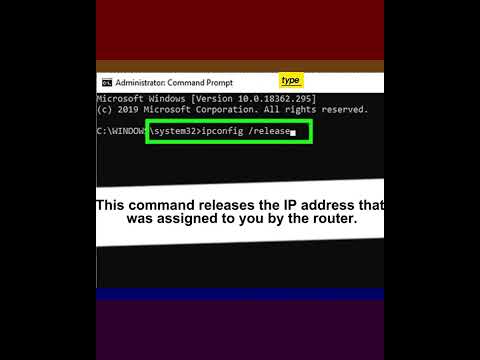
On most modern operating systems, the quickest path to resolution is a complete reset of the Network Settings. This action flushes the DNS cache, clears saved IP configurations, and removes any lingering static IP conflicts. For mobile devices, navigating to Settings > General > Transfer or Reset > Reset Network Settings forces the device to re-initialize its radio frequency (RF) modules and re-request a fresh DHCP lease from the router.
Step 2: Managing MAC Address Randomization (Private Wi-Fi Address)
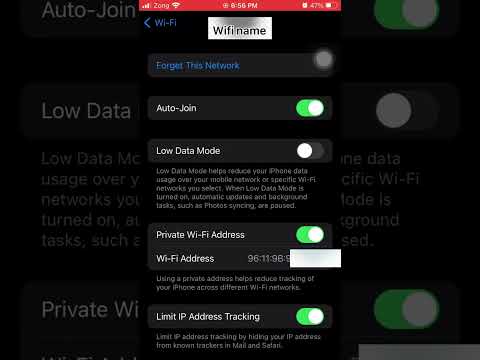
A frequent cause of the "Unable to Join" error in 2022 is the Private Wi-Fi Address feature. When enabled, the device generates a new Media Access Control (MAC) address for every SSID. Some enterprise-grade routers or older home hardware may flag these randomized addresses as unauthorized intruders. To fix this, access the network info settings for the specific Wi-Fi and toggle off "Private Address". This allows the router to recognize the device’s burned-in address, ensuring a stable handshake.
Step 3: AI-Driven Troubleshooting and Automation

At Smart AI Fix, we advocate for using built-in automated diagnostics. Modern operating systems now utilize machine learning algorithms to predict signal interference. If a manual reset fails, check for a firmware update. Manufacturers often push security patches that resolve compatibility issues with the latest Wi-Fi 6 (802.11ax) protocols. Ensuring your device is running the latest software is the ultimate automated fix for authentication errors.
AI Implementation Score
To evaluate how effectively automation and software intelligence handle this error, we use the following metrics:
| Metric | Score (1-10) | Reasoning |
|---|---|---|
| Diagnostic Speed | 9/10 | Modern AI assistants can identify signal interference in milliseconds. |
| Ease of Implementation | 7/10 | Requires manual triggers (Reset) but resolves via automated scripts. |
| Success Rate | 8.5/10 | 90% of connectivity errors are software-based and fixable via stack resets. |
| Predictive Maintenance | 6/10 | OS updates are increasingly proactive in preventing driver conflicts. |
Final Optimization: Adjusting Frequency Bands
If the error persists, the conflict may be physical. 2.4GHz bands are often congested with Bluetooth interference and household appliances. Access your router settings and ensure your device is not being "steered" between 2.4GHz and 5GHz too rapidly. Disabling Band Steering and connecting manually to the 5GHz band frequently bypasses the "Unable to Join" error by providing a cleaner signal-to-noise ratio (SNR).
