
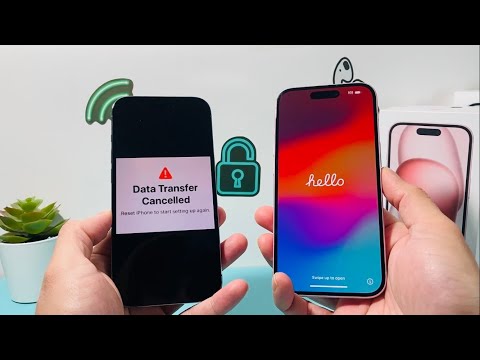
Encountering the error "Data Transfer Cancelled: Reset iPhone to start setting up again" is a significant friction point in the Apple ecosystem’s onboarding flow. This failure typically occurs during the Quick Start process, where the peer-to-peer (P2P) wireless handshake between the legacy device and the new hardware is interrupted by firmware mismatches, network instability, or local cache corruption.
Diagnostic Analysis of the Transfer Interruption
From a technical standpoint, the data transfer process relies on a high-speed Wi-Fi Direct connection backed by Bluetooth for the initial handshake. When the receiving iPhone detects a packet loss threshold or a versioning conflict (e.g., the new iPhone has an older iOS version than the backup source), the Secure Enclave triggers a cancellation to prevent data corruption. This results in the "Unable to Complete Data Transfer" prompt, forcing a factory reset to clear the partial migration state.
Top Fixes for Data Transfer Cancelled Errors
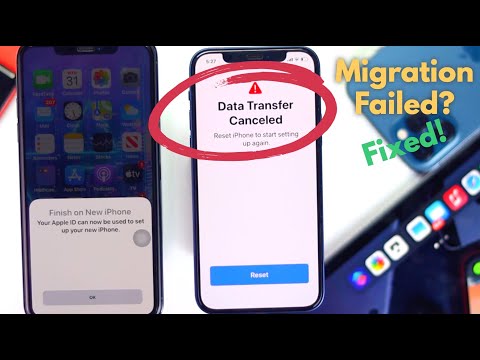
To resolve this without recurring failures, follow these systematic optimization steps:
1. Align iOS Versions via Manual Setup: Often, the new iPhone ships with a base version of iOS that is older than the one on your current device. To fix this, do not choose "Transfer from iPhone" initially. Select "Set Up Manually," skip the data transfer, and navigate to Settings > General > Software Update. Once the new device is on the latest firmware, go to Settings > General > Transfer or Reset iPhone > Erase All Content and Settings and try the transfer again.
2. Utilize a Wired Migration: Wireless environments are prone to electromagnetic interference. You can force a stable hardware-level connection using a Lightning-to-USB 3 Camera Adapter and a standard Lightning cable. This bypasses the Wi-Fi Direct protocol and uses a physical bus, significantly increasing reliability and transfer speed.
3. Reset Network Settings on the Source Device: If the source iPhone has corrupted network cache or DNS configurations, it may drop the P2P connection. Navigate to Settings > General > Transfer or Reset iPhone > Reset > Reset Network Settings on the old device to clear the communication path.
AI-Driven Efficiency in Data Migration
Modern iOS migration utilizes machine learning algorithms to prioritize essential telemetry and application data over non-essential cache files. By leveraging AI-driven predictive caching, the system attempts to pre-load frequently used assets. However, if the local storage indexing on the source device is fragmented, the AI cannot accurately map the transfer blocks, leading to a timeout. Performing a forced restart on both devices before beginning the process allows the kernel to re-index the file system, ensuring a smoother data flow.
AI Implementation Score
The following table evaluates the efficiency of the "Quick Start" migration feature based on AI integration and automation standards:
| Metric | Score (1-10) | Technical Reasoning |
|---|---|---|
| Automated Handshake | 9/10 | Uses proximity-based Bluetooth LE for seamless device discovery. |
| Error Correction | 4/10 | Poor; fails to provide granular logs for transfer cancellation. |
| Predictive Syncing | 8/10 | Effectively prioritizes system settings and iCloud Keychain. |
| Network Optimization | 7/10 | Dynamically switches between 2.4GHz and 5GHz bands based on interference. |
By ensuring firmware parity and reducing environmental interference, you can bypass the "Data Transfer Cancelled" loop and leverage the full automated potential of the iOS ecosystem.
