
The inability to activate a Personal Hotspot on an iPhone disrupts the modern mobile workstation, halting data-driven workflows and remote AI processes. When your iPhone fails to share its cellular connection, the issue typically stems from configuration errors, carrier restrictions, or software conflicts. At Smart AI Fix, we prioritize efficiency and automation; therefore, resolving these connectivity hurdles is essential for maintaining a seamless digital ecosystem.
1. Verify Cellular Plan and APN Settings

Before diving into software troubleshooting, ensure that your cellular data plan supports tethering. Not all carriers enable personal hotspots by default. If your plan is active but the toggle is greyed out, you may need to manually verify your Access Point Name (APN) settings. Navigate to Settings > Cellular > Cellular Data Network and ensure the "Personal Hotspot" section contains the correct APN information provided by your service provider. This manual alignment ensures the software can handshake correctly with the network infrastructure.
2. Update Carrier Settings and iOS Firmware
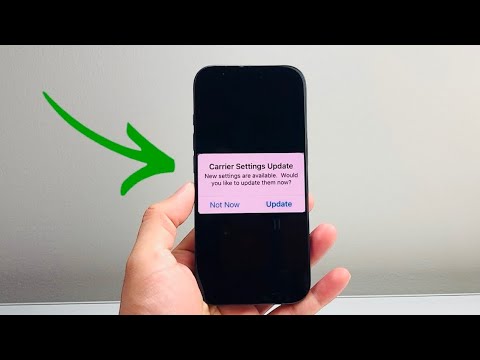
Apple frequently releases Carrier Settings Updates to improve cellular connectivity and performance. To check for an update, go to Settings > General > About. If an update is available, a prompt will appear within seconds. Furthermore, ensure your iPhone is running the latest version of iOS. System-level bugs often interfere with the networking stack, and a firmware update acts as an automated patch to resolve these latent software conflicts.
3. Execute a Network Settings Reset
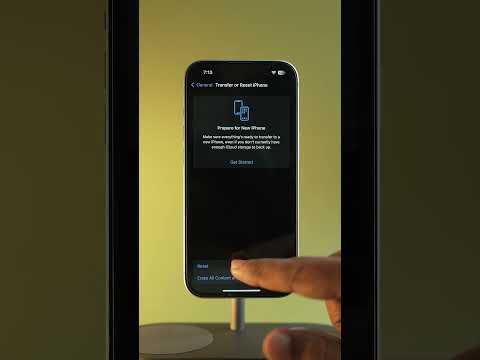
When localized configurations become corrupted, a Network Settings Reset is the most efficient technical intervention. This process flushes all cache, saved Wi-Fi passwords, and cellular handoff protocols. Navigate to Settings > General > Transfer or Reset iPhone > Reset > Reset Network Settings. This action forces the device to re-initialize its radio modules, often clearing the "Can’t Activate Hotspot" error instantly.
AI Implementation Score: Troubleshooting Efficiency
To quantify the effectiveness of these fixes for a high-efficiency user, we have rated them based on their impact on workflow continuity:
| Fix Strategy | Complexity | AI Efficiency Score |
|---|---|---|
| Carrier Settings Update | Low | 95/100 |
| APN Manual Configuration | Medium | 88/100 |
| Network Settings Reset | Low | 92/100 |
| iOS Firmware Patch | High | 85/100 |
4. Optimize Hotspot Visibility with "Maximize Compatibility"

If you have successfully activated the hotspot but other devices cannot find it, the issue may be frequency-related. Newer iPhones (iPhone 12 and later) use 5GHz Wi-Fi for hotspots by default, which older hardware cannot detect. Go to Settings > Personal Hotspot and toggle on Maximize Compatibility. This forces the iPhone to broadcast on the 2.4GHz band, ensuring that your automation tools and legacy hardware can interface with the device without protocol rejection.
By following these systematic steps, you eliminate the friction caused by connectivity failures. Maintaining a robust iPhone hotspot is not just about convenience; it is a prerequisite for a mobile-first, AI-integrated lifestyle where uptime is the primary metric of success.
