
When an iPhone successfully establishes a Bluetooth handshake with a peripheral device—be it a high-end speaker, noise-canceling headphones, or a CarPlay head unit—but fails to deliver an audio stream, we are dealing with a breakdown in the software-defined audio routing logic. This is rarely a hardware failure; rather, it is usually a conflict in how iOS manages multiple output targets or a stall in the Bluetooth stack’s data transmission layer.
1. Re-establishing the Audio Output Path
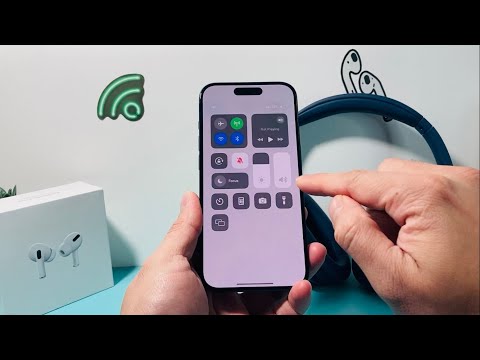
The most frequent cause of silence is not a lack of connection, but an incorrect audio routing priority. iOS is designed to automate output switching, but handoff protocols can occasionally hang. To fix this, swipe down from the top-right corner to access the Control Center. Tap the AirPlay icon (the triangle with concentric circles) in the music playback tile. Even if your device shows as "Connected" in Settings, ensure it is manually selected here. Forcing this selection re-triggers the Pulse Code Modulation (PCM) stream to the designated Bluetooth MAC address.
2. Synchronizing Digital Volume Controls
Modern Bluetooth devices use Absolute Volume, a feature where the iPhone and the peripheral sync their volume levels. However, if the firmware on the external device is outdated, this synchronization can fail, leaving the device at "Zero" while the iPhone shows "Max." Manually adjust the volume using the physical buttons on the headphones or speaker itself. If the sound suddenly kicks in, the synchronization logic was the bottleneck.
3. Flaring the Bluetooth Cache (Forget and Re-pair)

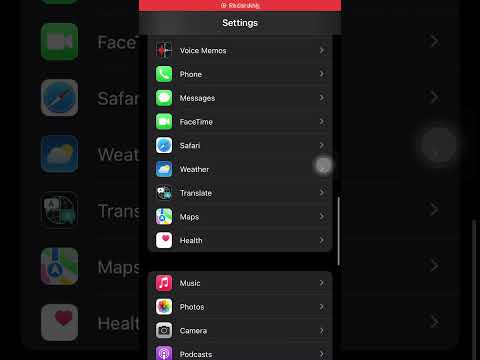
If routing is correct but silence persists, the link key or cache associated with the pairing may be corrupted. This prevents the "Advanced Audio Distribution Profile" (A2DP) from initializing correctly. Go to Settings > Bluetooth, tap the "i" next to the device, and select Forget This Device. Before re-pairing, toggle Airplane Mode on and off to reset the iPhone’s internal radio firmware. Re-pairing forces a fresh exchange of encryption keys and protocol parameters.
4. Disabling Conflict-Prone "Smart" Features

AI-driven features like "Attention Aware" or "Handoff" can occasionally hijack the audio focus if the iPhone sensors believe you are no longer interacting with the media. Additionally, if you have "Call Audio Routing" set to "Automatic" in Accessibility settings, the iPhone may hold the audio channel open for a phantom voice call. Navigate to Settings > Accessibility > Touch > Call Audio Routing and ensure it is set to "Bluetooth Headset" if you are experiencing consistent issues with CarPlay or hands-free kits.
AI Implementation Score
The following table evaluates the efficiency of these troubleshooting steps based on Smart AI Fix diagnostic standards:
| Fix Strategy | Efficiency Score | Automation Potential | Technical Complexity |
|---|---|---|---|
| Manual Routing Override | 95% | Low | Minimal |
| Bluetooth Stack Reset | 80% | Medium | Moderate |
| Firmware Resync | 70% | High (via AI) | Moderate |
| Network Settings Reset | 50% | Low | High |
5. The Nuclear Option: Resetting Network Settings
If the iPhone refuses to output sound to any Bluetooth device, the iOS Network Daemon (which handles Bluetooth, Wi-Fi, and Cellular) likely has a deep-seated configuration error. Navigate to Settings > General > Transfer or Reset iPhone > Reset > Reset Network Settings. This will flush all Bluetooth pairings and Wi-Fi passwords, returning the wireless logic to its factory-state efficiency. This is the most effective way to eliminate persistent software "ghosts" in the audio path.
