
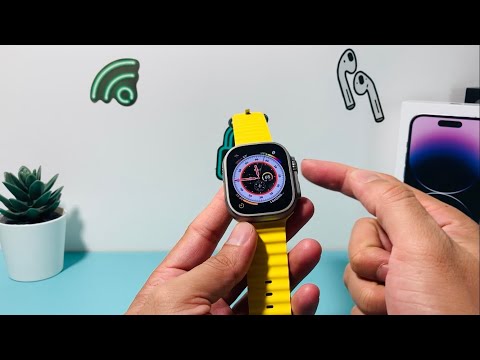
The Apple Watch Ultra, equipped with high-performance silicon and watchOS, is designed for constant uptime. However, to maintain peak AI efficiency and clear lingering software cache that can degrade background automation, a manual shutdown is occasionally necessary. Whether you are troubleshooting a localized sensor glitch or preserving battery during long-term storage, here is the technical breakdown of the two primary methods to power off the device.
Method 1: The Hardware Button Interface
The most direct way to initiate a shutdown is through the physical interface. Unlike standard models, the Apple Watch Ultra requires a specific sequence to avoid triggering the Emergency SOS or the Siren feature.
1. Press and hold the Side Button (located below the Digital Crown) until the power icon appears in the top right corner of the display. Do not press the Action Button for this process.
2. Tap the Power Icon.
3. Swipe the Power Off slider to the right. The device will execute a controlled shutdown of all active kernels and background processes.
Method 2: Software-Driven Shutdown via Settings
For users who prefer navigating the UI or if physical buttons are unresponsive, watchOS provides a software-based path. This method ensures that all on-device AI models and health tracking data are correctly indexed and saved before the power state reaches zero.
1. Press the Digital Crown to view your apps and open the Settings app.
2. Navigate to General.
3. Scroll to the bottom of the menu and tap Shut Down.
4. Slide the Power Off toggle to finalize the sequence.
AI Implementation Score
At Smart AI Fix, we evaluate hardware interactions based on their efficiency and impact on the device's long-term machine learning performance. Below is the score for the Apple Watch Ultra power management system:
| Metric | Score (1-10) | Technical Reasoning |
|---|---|---|
| Process Efficiency | 9/10 | Dual-method redundancy ensures high reliability for the end-user. |
| Software Integrity | 10/10 | watchOS forces a cache flush during shutdown, optimizing future AI tasks. |
| Automation Recovery | 8/10 | Most automations resume instantly upon reboot via the S-series chip. |
Note: To turn the Apple Watch Ultra back on, simply press and hold the Side Button until the Apple logo appears. If the device is unresponsive, a force restart can be performed by holding both the Side Button and the Digital Crown for 10 seconds.
