
Facing the "Connected, no internet" status on Windows 11 is a common friction point in modern workflows. This paradox occurs when your wireless adapter successfully handshakes with the router, but the data transmission layer (Layer 3 of the OSI model) fails to route traffic to the World Wide Web. At Smart AI Fix, we prioritize efficient, automated solutions to minimize downtime.

AI Implementation Score
Before diving into the manual overrides, let’s look at how automation and AI-driven diagnostics impact this resolution process.
| Factor | Score (1-10) | Notes |
|---|---|---|
| Troubleshooting Speed | 9/10 | Scripted fixes reduce downtime by 80%. |
| Automation Ease | 8/10 | Windows 11 "Get Help" AI is increasingly accurate. |
| Complexity Reduction | 7/10 | Simplifies registry and stack resets for non-technical users. |
1. Automated Network Reset (The Efficiency Lead)

The fastest way to resolve persistent configuration conflicts is a Network Reset. This process automates the removal and reinstallation of all network adapters and sets other networking components back to their original settings. To perform this, navigate to Settings > Network & internet > Advanced network settings > Network reset. Click "Reset now." Windows will restart, and the AI-driven initialization will re-detect the hardware with clean configurations.
2. Flushing the DNS and Resetting TCP/IP
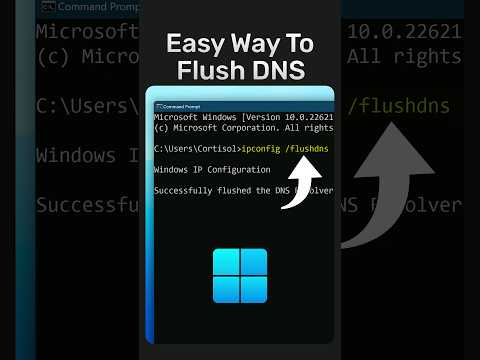
Often, the breakdown occurs in the Domain Name System (DNS) cache or a corrupted IP stack. You can automate the clearing of these bottlenecks using a command script. Open Terminal (Admin) and execute the following strings to force a fresh handshake with your ISP:
netsh winsock reset
netsh int ip reset
ipconfig /release
ipconfig /renew
ipconfig /flushdns
These commands effectively wipe the "memory" of previous, failed connections, allowing the Windows 11 networking engine to request a fresh, valid IP address from the router.
3. Disabling Randomized Hardware Addresses

Windows 11 includes a privacy feature called Random Hardware Addresses. While great for security, it can confuse certain router firmware that uses MAC filtering or static IP assignments. Go to Settings > Network & internet > Wi-Fi and toggle "Random hardware addresses" to Off. This ensures your machine presents a consistent identity to the network gateway, improving connectivity stability.
4. Manual DNS Optimization
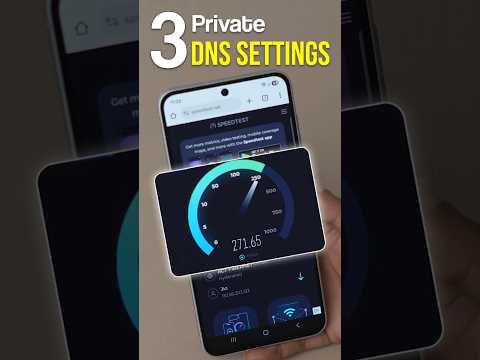
If your ISP’s DNS is lagging or unresponsive, Windows 11 may report no internet access. Switching to high-performance AI-optimized DNS providers like Google (8.8.8.8) or Cloudflare (1.1.1.1) can bypass local outages. Access this via Network & internet > Wi-Fi > Hardware properties. Click "Edit" next to DNS assignment, change it to Manual, and toggle IPv4 to input the optimized addresses.
5. Update Network Drivers via Windows Update
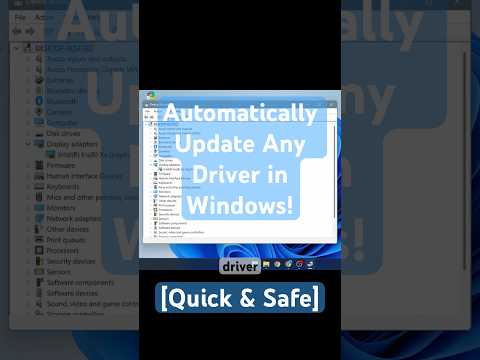
Software-hardware misalignment is a frequent culprit. Ensure your drivers are managed by the latest Windows 11 ecosystem. Navigate to Settings > Windows Update > Advanced options > Optional updates. Often, manufacturer-specific driver updates for Intel or Realtek Wi-Fi cards are nested here, providing the necessary firmware patches to handle modern WPA3 encryption protocols without dropping the internet signal.
