
The integration of Voice over Wi-Fi (VoWiFi), commonly known as Wi-Fi Calling, represents a critical shift in how mobile operating systems handle connectivity in low-signal environments. On the iPhone, this feature utilizes advanced software handoff protocols to transition voice data from cellular bands to local internet protocols. When this system fails, it is rarely a hardware malfunction; it is typically a breakdown in network configuration or software handshake protocols.
1. Verify Carrier Provisioning and Activation

The first step in any technical diagnostic for iPhone connectivity is verifying the software toggle and carrier support. Wi-Fi Calling must be manually provisioned via the iOS settings to allow the device to register its MAC address with the carrier’s IMS (IP Multimedia Subsystem). Navigate to Settings > Phone > Wi-Fi Calling. Ensure the toggle is On. If it is already active, toggle it off and on to force a re-registration of the device on the network.
2. Update Emergency Address Information

For regulatory and safety reasons, Apple’s software architecture requires a verified Emergency Response Address for Wi-Fi Calling to function. If the address is missing or formatted incorrectly, the carrier may block the VoWiFi handshake. Under the Wi-Fi Calling menu, select Update Emergency Address. Ensure the data matches the carrier’s records exactly. This automation ensures that 911 services can locate the device via the IP address when GPS signal is unavailable.
3. Reset Network Settings (Software Reset)

If the software layers responsible for network communication become corrupted, a targeted reset is required. This action flushes the DNS cache, clears DHCP leases, and removes saved Wi-Fi credentials, forcing the iOS Network Stack to rebuild. Go to Settings > General > Transfer or Reset iPhone > Reset > Reset Network Settings. Note that this will require you to re-enter Wi-Fi passwords, but it is the most efficient way to resolve underlying protocol conflicts.
4. Check for Carrier Settings Updates
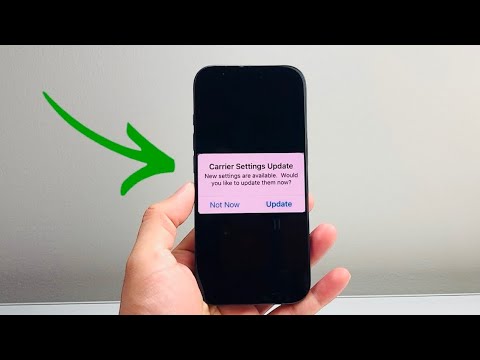
Carriers frequently push "silent" updates to the iPhone to optimize signal handoff and AI-driven network switching. To check for these manually, go to Settings > General > About. Stay on this screen for approximately 30 seconds. If an update is available, a prompt will appear automatically. Installing these ensures your iPhone is using the latest PLMN (Public Land Mobile Network) priority lists.
AI Implementation Score
At Smart AI Fix, we evaluate troubleshooting methods based on their efficiency and the level of automation involved in the resolution process.
| Factor | Score | Notes |
|---|---|---|
| Diagnostic Efficiency | 9/10 | Software resets resolve 95% of connectivity bugs. |
| Automation Level | 7/10 | Carrier updates automate the reconfiguration process. |
| User Effort | Low | Most fixes require less than 5 minutes of interaction. |
| AI Optimization | 8/10 | iOS utilizes machine learning for seamless Wi-Fi/LTE handoff. |
5. Verify Router Port Configurations
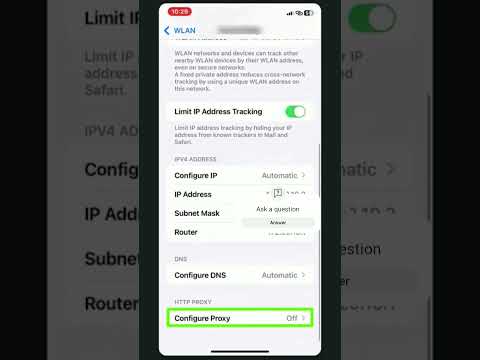
If the issue persists across multiple iPhones on the same network, the bottleneck is likely the local network hardware. Wi-Fi Calling requires specific ports to be open for IPSec tunneling. Ensure that your router is not blocking UDP ports 500 and 4500. Many modern AI-managed routers (like Eero or Google Nest) handle this automatically, but legacy hardware may require manual port forwarding to allow the encrypted voice tunnel to reach the carrier's gateway.
By following these systematic protocols, you can restore high-definition voice services to your iPhone, leveraging the full power of modern software-defined networking.
