
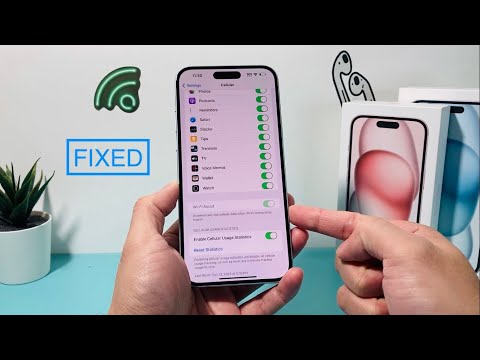
Wi-Fi Assist is one of iOS’s most effective background automation features, designed to optimize network efficiency by intelligently switching to cellular data when a Wi-Fi signal becomes latent or unreliable. However, many power users encounter a technical hurdle where the Wi-Fi Assist toggle is greyed out within the Cellular settings menu. This issue usually stems from a conflict in data permission logic or administrative restrictions rather than a hardware failure.
Understanding the Logic of Wi-Fi Assist
From an architectural standpoint, Wi-Fi Assist functions as a heuristic algorithm. It monitors the Round Trip Time (RTT) and packet loss of the current Wi-Fi connection. If the software determines that the cellular throughput will provide a superior user experience, it triggers a seamless transition. For this automation to be active, the system requires an unrestricted "handshake" with the cellular radio. If that path is blocked by software configurations, the toggle is rendered inactive.
Primary Cause: Cellular Data is Disabled Globally
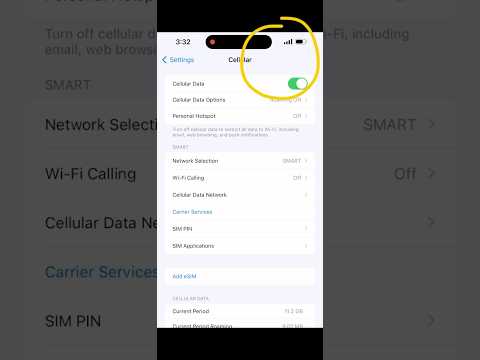
The most common reason for a greyed-out Wi-Fi Assist option is that Cellular Data itself is turned off. Since Wi-Fi Assist acts as a bridge to your data plan, the iPhone’s OS disables the setting if the destination network (Cellular) is unavailable. To resolve this, navigate to Settings > Cellular and ensure the primary Cellular Data switch is toggled to 'On'.
Secondary Cause: Data Roaming and Usage Restrictions
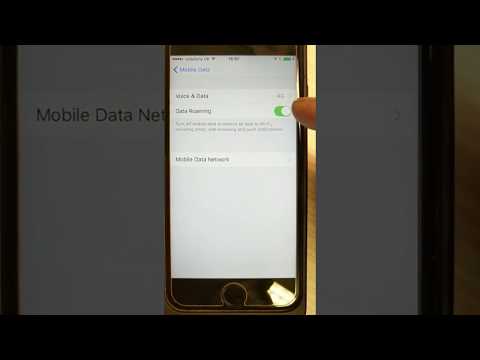
If you are currently traveling or have strict data caps implemented via a carrier profile, the system may grey out Wi-Fi Assist to prevent unintentional data overages. Apple’s software logic prioritizes cost-efficiency over network speed in these scenarios. Check if Data Roaming is disabled in your Cellular Data Options, as certain regions prevent the automated switch to avoid high roaming fees.
Resolving Screen Time and MDM Profile Conflicts

For iPhones managed by a corporation or restricted via Screen Time, the "Cellular Data Changes" permission might be set to "Don't Allow." This prevents the user from modifying any settings that impact data consumption. To fix this, go to Settings > Screen Time > Content & Privacy Restrictions. If enabled, ensure that Cellular Data Changes is set to "Allow." Once changed, the Wi-Fi Assist toggle should become interactive immediately.
AI Implementation Score: Wi-Fi Assist Optimization
At Smart AI Fix, we evaluate software features based on their level of automation and intelligent decision-making. Here is how Wi-Fi Assist scores:
| Criteria | Score (1-10) | Technical Notes |
|---|---|---|
| Automation Level | 9/10 | Requires zero user input once active; background execution is seamless. |
| Latency Prediction | 7/10 | Effective at identifying signal drops, though occasionally aggressive on weak but stable signals. |
| Efficiency | 8/10 | Optimizes data packets by only engaging when Wi-Fi performance falls below a specific threshold. |
Final Software Reset
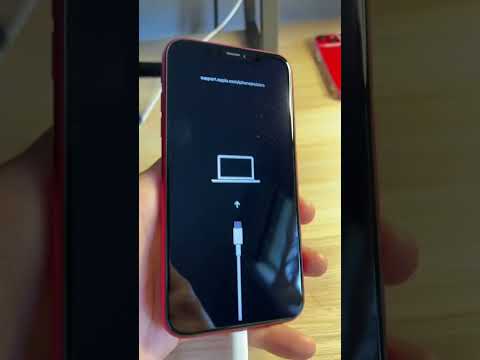
If the toggle remains greyed out after checking data settings and restrictions, a Network Settings Reset is the final technical step. This clears all cached network credentials and resets the internal mapping between the Wi-Fi and Cellular radios. Navigate to Settings > General > Transfer or Reset iPhone > Reset > Reset Network Settings. Note that this will require you to re-enter saved Wi-Fi passwords, but it effectively clears the software flag causing the greyed-out state.
