
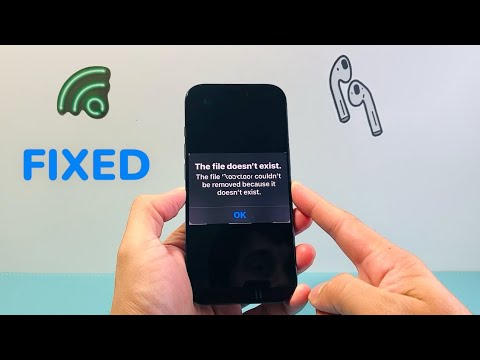
The "The file couldn’t be removed because it doesn’t exist" error on iOS is a classic synchronization conflict often referred to in developer circles as a "Ghost File" phenomenon. This occurs when the iPhone’s file system (APFS) metadata indicates a file’s presence, but the actual data blocks have already been unlinked or deleted from the underlying storage. This mismatch creates a UI loop where the user sees an icon that the system cannot act upon.
Understanding the Metadata Inconsistency

In most instances, this error is triggered by iCloud Drive latency or an interrupted API call during a high-speed file transfer. When you attempt to delete a file that is currently being indexed by an AI-driven background process or synced to a cloud server, the pointer remains in the "Files" app database even after the source file has been purged. To resolve this, we must force the operating system to re-index its file hierarchy.
Step 1: Force a System Re-Index via Hard Reset

A standard power-off frequently fails to clear the temporary cache associated with the MobileStorage daemon. To fix this, perform a forced restart: Press and quickly release the Volume Up button, press and quickly release the Volume Down button, then press and hold the Side button until the Apple logo appears. This flushes the kernel cache and forces the Files app to cross-reference its database with the actual NAND storage state.
Step 2: Toggle iCloud Drive Synchronization

If the file persists, the error is likely cached within the CloudKit framework. Navigate to Settings > [Your Name] > iCloud > iCloud Drive. Toggle the "Sync this iPhone" switch to OFF. Choose to "Remove from iPhone" if prompted. Wait 60 seconds for the local database to clear, then toggle it back ON. This action forces the iPhone to rebuild the local file manifest from the server-side truth, effectively erasing the ghost file entry.
Step 3: Offloading the Files App for Deep Cache Clearance
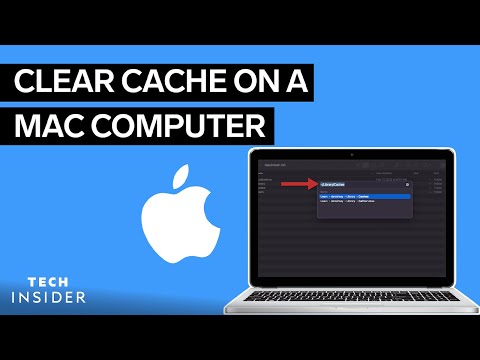
When the system-level fixes fail, the corruption may reside within the application’s specific sandbox. Go to Settings > General > iPhone Storage > Files. Select "Offload App". This removes the application binary but preserves your documents. Reinstall the app from the App Store. This process resets the app’s internal pointers without requiring a full device restore, often resolving deep-seated indexing errors that the standard UI cannot reach.
AI Implementation Score
For users looking to automate their device maintenance, understanding the efficiency of these fixes is vital. Below is the AI Implementation Score for managing iOS file system errors:
| Metric | Score (1-10) | Notes |
|---|---|---|
| Efficiency | 9 | Quick resolution via system re-indexing. |
| Automation Potential | 4 | iOS sandboxing limits automated file system repairs. |
| Technical Difficulty | 3 | Accessible to average users via Settings. |
| AI Diagnostic Accuracy | 8 | iCloud's internal logic usually self-heals after a toggle. |
Leveraging Shortcuts for Automated Cleanup

To prevent future occurrences of this error, you can use the iOS Shortcuts app to create a "Cache Cleaner" automation. By setting a script to move temporary files to a designated "Trash" folder and then clearing it, you minimize the risk of metadata fragmentation. Maintaining a lean file system ensures that the iPhone’s machine learning algorithms can index your data more accurately, preventing the "file doesn't exist" loop before it starts.
