
The Samsung Galaxy S10 remains a robust piece of hardware, but whether you are preparing the device for resale or troubleshooting persistent software degradation, a factory data reset is the most efficient way to restore the system to its "Out of Box" state. From an automation and system maintenance perspective, this process ensures that all cached data, third-party fragments, and encrypted user partitions are fully purged, allowing the Android OS to re-initialize without legacy interference.

Phase 1: Pre-Reset Protocol and Security Synchronization
Before initiating a total wipe, it is critical to address Factory Reset Protection (FRP). AI-driven security protocols in modern Android versions link the hardware to a specific Google account. If you intend to sell the device, you must manually remove the Google and Samsung accounts under Settings > Accounts and Backup > Accounts. Failure to do so will lock the device to your credentials even after the reset, rendering it useless to the next owner.
Additionally, ensure all biometric data and cloud-synced automation routines are backed up to Smart Switch or Google One. A factory reset on the S10 utilizes cryptographic erasure; once the encryption key is destroyed during the reset, the data is mathematically impossible to recover.
Method 1: The Software-Level Reset (Recommended)
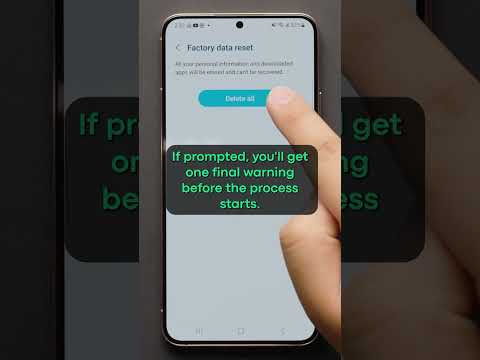
For most users, the internal settings menu is the safest route as it ensures a graceful shutdown of all background services before the partition is wiped. Use the following path:
- Navigate to Settings.
- Scroll to General Management.
- Select Reset.
- Tap Factory Data Reset.
- Review the list of apps and accounts to be deleted, then select Reset.
- Enter your PIN or Pattern and select Delete All.
Method 2: Hard Reset via Hardware Recovery (Advanced)

If the S10 is unresponsive or the software is locked, you must bypass the UI and enter the Android Recovery Environment. This method is the "nuclear option" for system repair.
1. Power off the device completely.
2. Press and hold the Volume Up + Bixby + Power buttons simultaneously.
3. Release the buttons once the Samsung logo appears.
4. Use the Volume buttons to navigate the menu to "Wipe data/factory reset" and press Power to select.
5. Confirm by selecting "Factory data reset".
6. Once the process completes, select "Reboot system now".
AI Implementation Score
At Smart AI Fix, we evaluate processes based on their efficiency, automation potential, and security integrity. Here is how the Galaxy S10 Factory Reset ranks:
| Metric | Score (1-10) | Notes |
|---|---|---|
| Data Security | 9.5 | Cryptographic erasure ensures zero data leakage. |
| Automation Ease | 8.0 | System-level scripts handle the wipe automatically. |
| FRP Reliability | 9.0 | Google's security layer effectively prevents unauthorized use. |
| Efficiency | 10.0 | Complete OS restoration in under 5 minutes. |
By following these steps, you ensure that your Samsung Galaxy S10 is completely sanitized of personal data. This maintains digital hygiene and ensures the software environment is optimized for its next deployment, whether that be a new user or a fresh start for your own daily operations.
