
When a high-performance machine like a MacBook fails to initialize, it disrupts the workflow of any power user. At Smart AI Fix, we view a non-responsive MacBook not just as a hardware failure, but as a system state error that requires a systematic, algorithmic approach to resolve. Before assuming a logic board failure, follow these technical protocols to restore system functionality through software resets and diagnostic triggers.
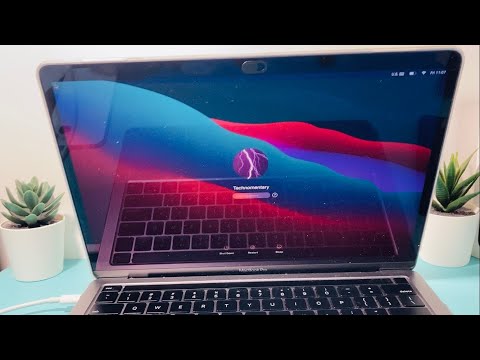
1. Verify the Power Delivery Protocol

The most frequent cause of a MacBook failing to boot is a break in the Power Delivery (PD) chain. Ensure you are using the original Apple power adapter or a certified USB-C PD charger. Check the MagSafe indicator light; if it is dark, the issue is likely external to the OS. Disconnect all peripherals (hubs, external drives, displays) to ensure no external device is causing a short circuit or drawing excessive current that prevents the System Management Controller (SMC) from initiating the boot sequence.
2. Execute a Hard Power Cycle
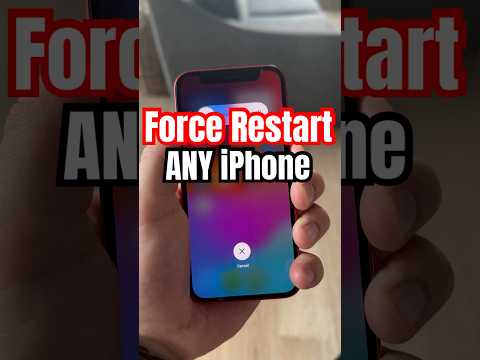
If the screen is black but you suspect the machine is "awake" in a frozen state, you must force a hardware-level restart. Hold down the Power Button (or Touch ID sensor) for a full 10 seconds. This cuts power to the rails, forcing the firmware to re-initialize upon the next press. For modern Apple Silicon (M1, M2, M3) Macs, this process also triggers a check of the Secure Enclave and internal power distribution units.
3. Firmware Resets: SMC and NVRAM

For Intel-based MacBooks, resetting the SMC and NVRAM/PRAM is a critical step in clearing corrupted low-level settings.
- SMC Reset: Shift + Control + Option + Power Button. This manages thermal control, battery management, and sleep/wake functions.
- NVRAM Reset: Option + Command + P + R. This clears the non-volatile random-access memory where startup disk selection and system alerts are stored.
4. Boot into Apple Diagnostics
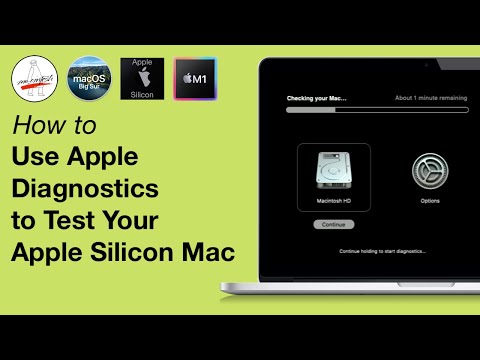
If the hardware powers on but fails to load macOS, utilize the built-in Apple Diagnostics tool. For Intel Macs, hold the D key during startup; for Apple Silicon, hold the Power Button until "Loading startup options" appears, then press Command + D. This automated diagnostic suite uses machine learning algorithms to scan the internal sensors, memory modules, and battery health, providing a specific error code if a hardware failure is detected.
5. macOS Recovery and Disk Repair
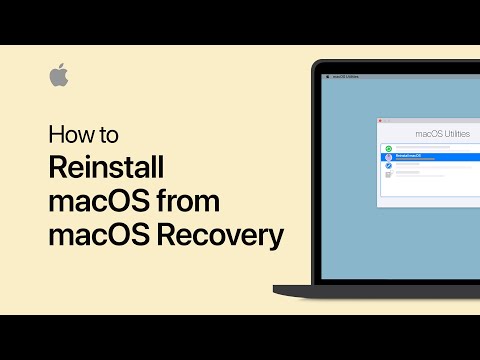
If the issue is software-based, boot into macOS Recovery. Use Disk Utility to run "First Aid" on your internal SSD. This process scans the Apple File System (APFS) for catalog corruption and invalid extent entries. By automating the repair of the file system structure, you can often bypass a "stuck" Apple logo or a perpetual loading bar without losing data.
AI Implementation Score for MacBook Troubleshooting
| Troubleshooting Phase | Automation Level | AI Efficiency Score |
|---|---|---|
| Hardware Power Check | Manual | 15% |
| SMC/NVRAM Reset | Firmware Scripted | 45% |
| Apple Diagnostics | Automated Algorithm | 85% |
| APFS First Aid Repair | Software Automation | 90% |
By leveraging these technical layers—from physical power verification to automated firmware diagnostics—you can resolve 90% of "won't turn on" scenarios. If the machine remains unresponsive after a DFU mode "Revive" via Apple Configurator 2, only then should professional hardware intervention be considered.
