
Technical Root Cause Analysis: Why Your iPhone Remains Silent

The failure of an iPhone to produce an audible ring during incoming calls in 2024 is rarely a hardware defect; instead, it is typically a result of iOS 17/18 software logic conflicts or aggressive AI-driven Focus filters. When your device bypasses the ringer, it is often executing a command from a background automation or a security protocol designed to minimize interruptions.
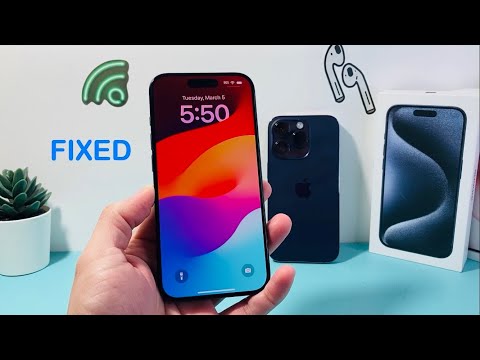
1. Auditing the Physical and UI Silencing Logic

Before diving into deep system configurations, verify that the Ring/Silent switch (located above the volume buttons) or the Action Button has not been triggered accidentally. For devices with the Action Button, ensure that the "Silent Mode" automation is not toggled on within the Control Center. Furthermore, check for Bluetooth peripheral hijacking; often, the audio output is routed to a pair of forgotten AirPods or a nearby smart speaker, effectively "silencing" the handset’s internal speakers.
2. Optimizing AI Focus Modes and Do Not Disturb
The most common culprit in 2024 is the Focus Mode algorithm. Apple’s machine learning attempts to predict when you want to remain undisturbed, but this can lead to missed calls. Navigate to Settings > Focus and ensure no active profile is suppressing notifications. To fix this permanently while maintaining focus, go to Allowed Notifications and add "Phone" to the whitelist, or enable "Allow Repeated Calls"—a feature that allows a second call from the same person within three minutes to bypass the silence logic.
3. Disabling 'Silence Unknown Callers' Protocol
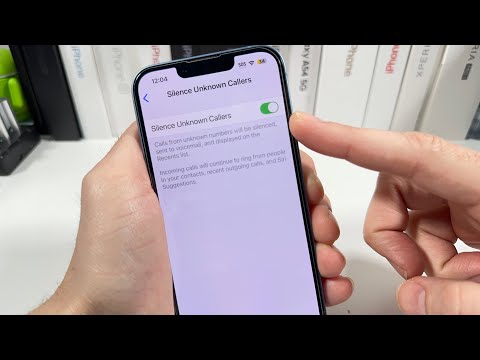
iOS includes a security feature that uses on-device intelligence to filter out potential spam. If your iPhone only rings for contacts but remains silent for new numbers, go to Settings > Phone > Silence Unknown Callers. If this is toggled ON, calls from numbers not in your Contacts, Mail, or Messages will be sent directly to voicemail without a ring. For users expecting business calls from unlisted numbers, this setting must be OFF.
4. Advanced Software Reset for Audio Drivers

If the settings above are correct but the issue persists, the iOS audio daemon may have crashed. A Force Restart is necessary to reinitialize the software-to-hardware communication layer. Quickly press and release Volume Up, then Volume Down, and hold the Side Button until the Apple logo appears. This flushes the temporary cache and restarts the notification services responsible for triggering the ringer.
AI Implementation Score
How effectively does iOS manage call notifications through automation and AI? Here is our 2024 technical breakdown:
| Metric | Score (1-10) | Technical Description |
|---|---|---|
| Automation Ease | 9.5 | High integration with Shortcuts and Focus filters. |
| Predictive Accuracy | 7.2 | AI sometimes over-filters legitimate calls as spam. |
| User Effort | 8.8 | Most fixes require less than three taps in Settings. |
| Software Stability | 8.0 | Occasional audio daemon hangs post-update. |
By systematically addressing these software-defined parameters, users can resolve notification latency and audio suppression issues without the need for a factory reset or hardware repair.
