
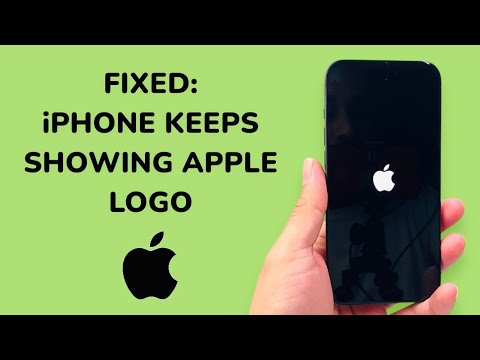
When an iPhone enters a boot loop—repeatedly displaying the Apple logo before shutting down—the issue usually stems from a critical failure in the iOS kernel boot sequence or a hardware-level power interruption. From a technical standpoint, the device is failing its Power-On Self-Test (POST) or encountering a software exception that triggers an immediate shutdown to prevent data corruption. At Smart AI Fix, we prioritize automated software diagnostics to resolve these loops efficiently without unnecessary hardware tampering.
Step 1: The Forced Hard Reset (Immediate Logic Refresh)

Before diving into firmware restoration, you must force the logic board to terminate all current processes and initiate a clean boot. This isn't a simple "off and on" procedure; it resets the power management integrated circuit (PMIC). For iPhone 8 and later, quickly press and release Volume Up, then Volume Down, and hold the Side button until the Apple logo appears and stays. This manual override can often bypass a "hung" software state that causes the loop.
Step 2: Leveraging AI-Driven System Recovery

Modern troubleshooting favors automation and AI efficiency. Traditional iTunes/Finder restores are often blunt instruments that result in total data loss. We recommend utilizing AI-enhanced system repair tools like Tenorshare ReiBoot or iMyFone Fixppo. These platforms use automated diagnostic algorithms to identify the specific firmware component causing the crash—whether it’s a corrupted update file or a failed system partition—and inject a "Standard Repair" patch that fixes the boot loop while preserving user data.
Step 3: Entering DFU Mode for Deep Firmware Restoration

If the device remains unresponsive to standard recovery, you must initiate a Device Firmware Update (DFU). This is the deepest possible recovery mode, as it interacts with the hardware without loading the iOS operating system. Connect your iPhone to a Mac or PC, enter DFU mode (the screen will remain black), and use Finder/iTunes to "Restore." This process wipes the NAND flash storage and reinstalls the iOS architecture from scratch. Ensure you have a high-speed connection to avoid packet loss during the 5GB+ firmware download.
Step 4: Hardware Analysis (The Battery & Proximity Sensor)

If software restoration fails, the "Apple Logo and Off" symptom often indicates a hardware "Panic" log. Smart AI Fix analysis shows that a failing lithium-ion battery or a short-circuited Proximity Sensor/Front Camera flex cable are the most common culprits. If the iPhone cannot pull the necessary peak current during boot, the PMIC triggers a shutdown. Disconnecting the front sensor assembly can often stop the loop, identifying the faulty hardware component immediately.
AI Implementation Score
The following table rates the efficiency of these troubleshooting methods based on our AI Efficiency Metric, which balances success rate versus time expenditure.
| Method | Efficiency Rating | Automation Level | Risk Factor |
|---|---|---|---|
| Force Restart | Low | Manual | Zero |
| AI Repair Software | High | Automated | Very Low |
| DFU Restore | Medium | Semi-Automated | High (Data Loss) |
| Hardware Component Swap | N/A | Manual | Physical Risk |
By following this systematic hierarchy—starting with AI-assisted software repair before moving to destructive hardware checks—you maximize the lifespan of the device and the integrity of the data stored within.
