
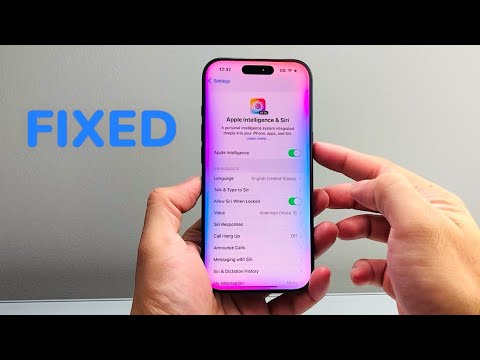
The introduction of the "Glow" interface in iOS 18 represents a significant shift in how users interact with Apple Intelligence. This border light animation is more than just an aesthetic choice; it is a high-frequency visual feedback loop that signals the activation of advanced neural processing. When the iPhone border lights are not working with Siri, it disrupts the seamless flow of AI-human interaction. This technical guide addresses the root causes of this failure, focusing on software optimization and system-level configurations.
1. Verify Hardware and Software Prerequisites

The new Siri border light animation is deeply integrated with the A17 Pro chip and subsequent A18 series silicon. While some legacy devices running iOS 18 may see a refreshed Siri icon, the edge-to-edge glow is specifically designed for devices capable of supporting "Apple Intelligence." Ensure your device is an iPhone 15 Pro, iPhone 15 Pro Max, or any model from the iPhone 16 lineup. Additionally, navigate to Settings > General > Software Update to ensure you are running the latest stable build, as early iterations of the glow interface contained bug-prone UI threads.
2. Disable "Reduce Motion" and "Reduce Transparency"
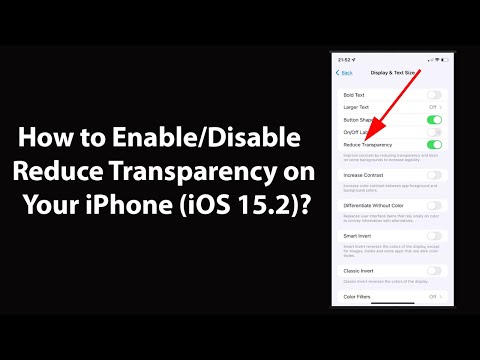
Automation and visual effects are often the first victims of aggressive accessibility settings. If Reduce Motion is enabled, the system kills non-essential animations to save resources or assist users with motion sensitivity. This includes the Siri border glow. To fix this, navigate to Settings > Accessibility > Motion and toggle Reduce Motion to OFF. Furthermore, go to Accessibility > Display & Text Size and ensure Reduce Transparency is disabled, as the Siri glow relies on alpha-channel blending to create the border effect.
3. Power Management and Thermal Throttling
The AI-driven border light utilizes a sophisticated rendering engine that consumes incremental GPU cycles. When an iPhone enters Low Power Mode, the system limits background processes and reduces the polling rate of visual effects. If your border lights are missing, check if the battery icon is yellow. Disable Low Power Mode via Settings > Battery. Additionally, if the device is experiencing high thermal levels (thermal throttling), the system may default to the legacy Siri orb to preserve the Neural Engine's efficiency for voice processing rather than visual output.
4. Resetting Siri's Trigger Mechanism

Occasionally, the software hook that triggers the visual "Glow" fails to initialize upon the "Hey Siri" or "Siri" vocal command. A hard reset of the Siri logic often recalibrates the automation. Go to Settings > Siri & Search, toggle Listen for "Siri" or "Hey Siri" to OFF, wait ten seconds, and toggle it back ON. This forces the system to re-register the UI components associated with the voice trigger.
AI Implementation Score
The following table evaluates the efficiency of the Siri Glow feature from a technical and automated feedback perspective:
| Category | Score (1-10) | Technical Rationale |
|---|---|---|
| Visual Feedback Latency | 9.5 | Near-instant GPU rendering upon voice trigger detection. |
| System Resource Impact | 7.0 | Requires significant GPU/NPU overhead compared to legacy UI. |
| AI Integration | 9.0 | Successfully signals Apple Intelligence status via color shifts. |
| Automation Reliability | 8.5 | High reliability on supported hardware; sensitive to power states. |
5. Force Restart to Clear UI Cache

If the border lights remain non-functional despite correct settings, a Force Restart is required to clear the temporary UI cache. Quickly press and release Volume Up, then Volume Down, and hold the Side Button until the Apple logo appears. This process flushes the RAM and restarts the SpringBoard (the iOS interface manager), which often resolves glitches where the Siri border light layer fails to overlay correctly on the display's active pixels.
