
Managing audio states on the iPhone 17 Pro and iPhone 17 Pro Max has evolved beyond the legacy physical toggle. As Apple deepens the integration of Apple Intelligence and haptic feedback, silencing your device is now a multi-layered process involving the Action Button, Control Center, and automated Focus filters.
Method 1: Utilizing the Action Button

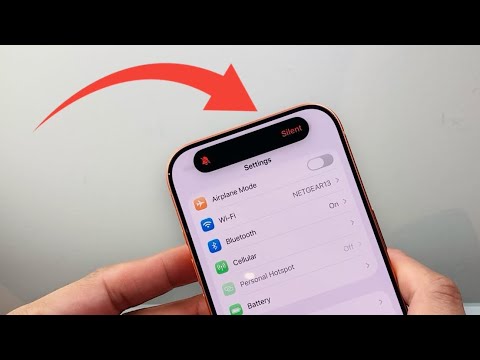
The primary hardware method to toggle Silent Mode on the iPhone 17 Pro is the Action Button. By default, a long press on this button switches between Ring and Silent. To ensure this is configured correctly, navigate to Settings > Action Button. Here, you can swipe to the "Silent Mode" option. The Dynamic Island will provide a visual confirmation, and the Taptic Engine will deliver a distinct vibration pattern to signal the change without requiring you to look at the screen.
Method 2: Control Center and Software UI
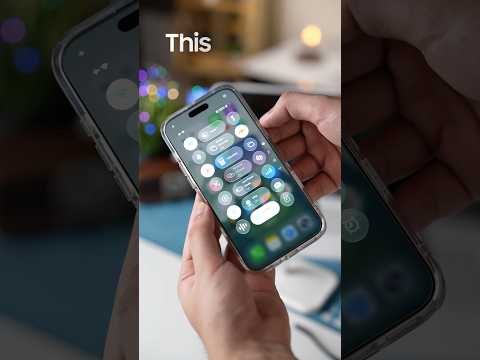
For users who have remapped their Action Button to AI shortcuts or camera functions, the Control Center remains the most efficient software-based solution. Swipe down from the top-right corner of your display. Locate the Bell Icon. A single tap will enable Silent Mode, turning the icon red with a strike-through. This method is particularly useful for those leveraging iOS 18/19 automation, as it provides an immediate override of current audio profiles.
Method 3: Automation via Focus Modes
To maximize AI efficiency, you should automate Silent Mode based on your environment or schedule. By navigating to Settings > Focus, you can select a profile (such as Work or Sleep) and add a Focus Filter. Select "Silent Mode" and set it to "On." Using on-device machine learning, your iPhone 17 Pro can detect when you arrive at a specific location, such as an office or cinema, and automatically trigger Silent Mode, eliminating the need for manual intervention.
AI Implementation Score
At Smart AI Fix, we evaluate hardware features based on their integration with intelligent workflows. The iPhone 17 Pro’s audio management scores high due to its predictive capabilities.
| Metric | Score (1-10) | Notes |
|---|---|---|
| Contextual Awareness | 9.2 | Excellent trigger precision via Focus Filters. |
| Haptic Feedback | 9.5 | Highly descriptive vibrations for eyes-free use. |
| Software Integration | 8.8 | Seamless Dynamic Island visual cues. |
| Automation Potential | 9.7 | Top-tier integration with Shortcuts and AI routines. |
Advanced Silent Mode Settings
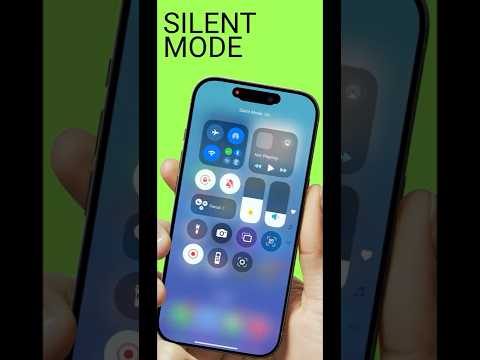
If you find that your device still vibrates during Silent Mode, you can refine this in Settings > Sounds & Haptics. Under the "Silent Mode" section, you can toggle "Play Haptics in Silent Mode" to off for a truly stealthy experience. For professional environments, we recommend keeping haptics on but utilizing the "System Haptics" toggle to minimize mechanical noise while maintaining tactile alerts.
