
The iPad 2 remains a resilient piece of hardware, even in a 2020 landscape dominated by neural engines and high-refresh-rate displays. When setting up this legacy device today, the focus shifts from high-end gaming to software efficiency and dedicated automation tasks. Setting up the device correctly ensures that the aging A5 chip maintains stability while handling modern data streams.
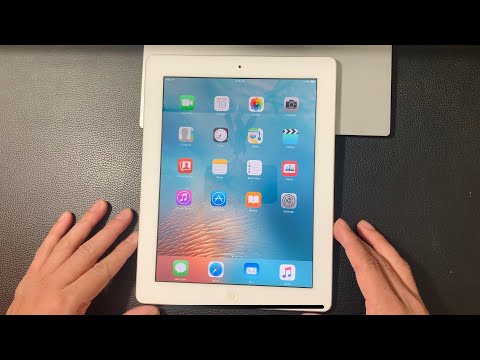
Step 1: Initial Activation and Network Configuration
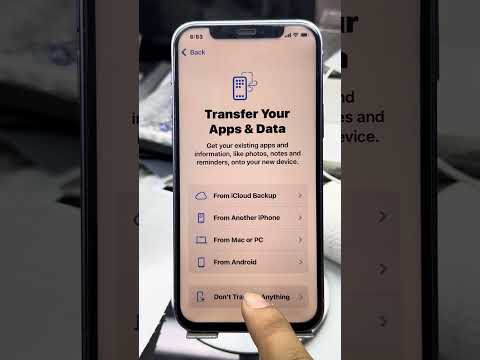
To begin the setup process, power on the device by holding the Sleep/Wake button. Upon seeing the "Hello" screen, slide to set your language and region. Connecting to a stable Wi-Fi network is critical at this stage; the iPad 2 requires an active handshake with Apple’s activation servers to verify the hardware's status. If you encounter an "Activation Server Unavailable" error, ensure you are using the latest version of iTunes on a desktop to facilitate the tethered activation process.
Step 2: Managing Apple ID and iCloud in a Modern Ecosystem

In 2020, security protocols like Two-Factor Authentication (2FA) can be tricky for iOS 9.3.5/9.3.6 (the maximum supported versions for iPad 2). When prompted for your Apple ID, enter your credentials. If your account has 2FA enabled, you may not receive a dedicated pop-up for the code. The technical workaround is to append the six-digit verification code directly to the end of your password in the password field. This allows the legacy software to authenticate securely with modern iCloud servers.
Step 3: Optimizing for Software Efficiency

Once you reach the Home Screen, the primary goal is to minimize background processes to preserve CPU cycles. Navigate to Settings > General > Background App Refresh and toggle it off. This reduces the load on the 512MB of RAM. For app installations, many modern apps require iOS 12 or higher. To bypass this, download the desired app on a newer iOS device first; then, on the iPad 2, go to the App Store > Purchased section. You will be prompted to download a "Last Compatible Version," which is essential for maintaining a functional software suite on older hardware.
AI Implementation Score: iPad 2 (2020 Context)
While the iPad 2 lacks a dedicated NPU (Neural Processing Unit), it can still function as a client-side interface for AI-driven home automation. Below is the performance breakdown:
| Metric | Score (1-10) | Notes |
|---|---|---|
| Edge AI Processing | 1 | No local machine learning capabilities. |
| Cloud Interface Efficiency | 6 | Reliable for controlling AI via web-dashboards. |
| Siri Functionality | 3 | Basic voice commands only; limited intent recognition. |
| Automation Stability | 7 | Excellent as a static smart home controller. |
Finalizing the Setup for Automation

To maximize the utility of the iPad 2 in 2020, leverage it as a dedicated automation hub. By using the "Guided Access" feature found in Settings > General > Accessibility, you can lock the device into a single application, such as a HomeKit dashboard or a remote monitoring station. This prevents the OS from struggling with multitasking and ensures the hardware remains responsive for its specific, programmed purpose.
