
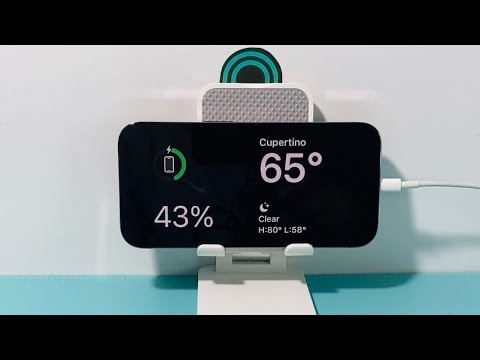
With the release of iOS 17, Apple has redefined the utility of an idle iPhone through a feature officially termed StandBy (frequently referred to as Nightstand Mode). This feature transforms the device into a glanceable smart display when not in active use, leveraging machine learning (ML) to prioritize information based on user habits and environmental context.
Architectural Requirements for StandBy Mode

To initialize StandBy, your hardware must meet specific criteria. While the software feature is available on all devices running iOS 17, the user experience varies based on display technology. Devices equipped with Always-On display (iPhone 14 Pro and iPhone 15 Pro series) offer a persistent view, whereas other models require a tap on the screen or a slight vibration of the surface to wake the display.
The mode is triggered only when the following three conditions are met simultaneously:
- The iPhone is charging (via MagSafe, Qi, or Lightning/USB-C).
- The device is locked.
- The device is positioned in a stationary, landscape orientation.
How to Enable and Configure StandBy
Configuration is straightforward, but maximizing efficiency requires navigating the Settings hierarchy. Follow these steps to ensure the software is optimized for your workflow:
1. Navigate to Settings > StandBy and toggle the switch to On.
2. Enable Night Mode: This is a critical automation feature that utilizes the ambient light sensor. When the room is dark, the UI shifts to a red tint to preserve the user's circadian rhythm and reduce blue light exposure.
3. Activate Motion to Wake: On supported models, the iPhone uses its internal sensors to detect movement in the room, automatically illuminating the display as you approach.
The AI Influence: Smart Stacks and Contextual Awareness

The core of StandBy’s efficiency lies in the Smart Stack view. This is not a static widget board; it is powered by Apple’s Proactive Intelligence. By long-pressing on a widget, you can toggle Smart Rotate. This allows the OS to use on-device AI to analyze your routine and surface the most relevant widget—such as a Calendar event in the morning or Home Kit controls in the evening—without manual intervention.
AI Implementation Score: iOS 17 StandBy
| Category | Score (1-10) | Technical Justification |
|---|---|---|
| Contextual Awareness | 9/10 | Uses light sensors and ML to adapt UI color and widget relevancy. |
| Energy Efficiency | 8/10 | Optimized refresh rates (1Hz) on Pro models via ProMotion. |
| Automation Level | 7/10 | Automatic triggers based on orientation and power state. |
| User Personalization | 9/10 | Individual MagSafe chargers can "remember" specific UI layouts. |
Advanced Customization: Three Distinct Views

StandBy offers three primary interactive panes that you can navigate by swiping horizontally:
1. Widget View: This is the primary productivity hub. You can split the screen into two independent widget columns. Smart AI Fix recommendation: Use the left side for time-sensitive data (Weather/Stocks) and the right side for automated Smart Stacks.
2. Photos View: Utilizes the Neural Engine to curate "Featured" photos from your library, intelligently cropping images to fit the landscape orientation while avoiding awkward compositions.
3. Clock View: A full-screen aesthetic display available in multiple formats (Digital, Analog, World, and Solar). The Solar clock dynamically adjusts based on your GPS-determined position to show the sun's current arc.
By integrating StandBy into your daily routine, you effectively turn your iPhone into a passive AI assistant that reduces the need for active screen time while maintaining high situational awareness.
