
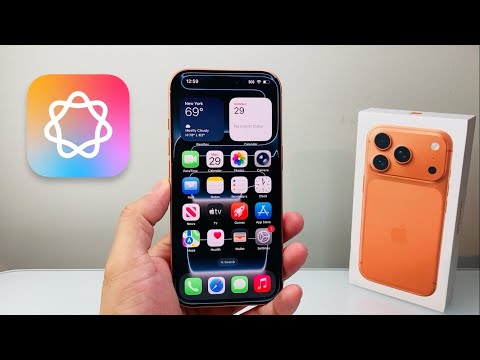
The iPhone 17 Pro, Pro Max, and the ultra-slim iPhone 17 Air represent a significant leap in localized AI processing power. Equipped with the A19 Pro chip and an expanded 12GB of RAM (standard across the Pro line), these devices are built to handle Apple Intelligence natively, minimizing reliance on Private Cloud Compute. To leverage these features for maximum productivity, users must navigate the integration of generative models within iOS 19.
Activating Apple Intelligence and Regional Settings
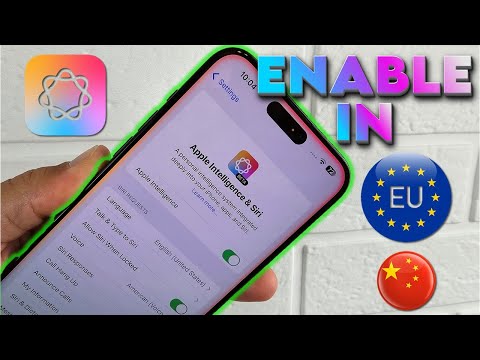
Before deploying AI workflows, ensure your device is updated to the latest iteration of iOS. Navigate to Settings > Apple Intelligence & Siri. For users on the iPhone 17 Pro series, the "On-Device Processing" toggle should be prioritized to ensure lower latency. If you are in a supported region, select Join the Apple Intelligence Waitlist (if applicable) or toggle the feature to On. Once the on-device models are indexed—a process that typically takes 10 to 15 minutes—the system will begin analyzing your local data for contextual relevance.
Mastering System-Wide Writing Tools
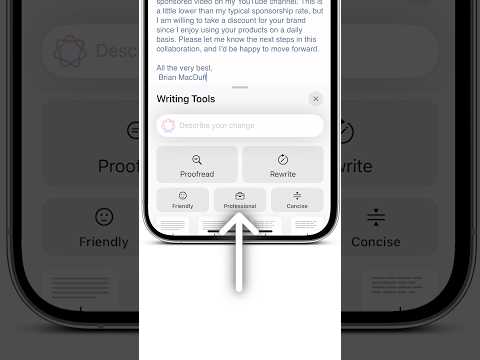
One of the most efficient automation features on the iPhone 17 Pro is the Writing Tools suite. This is accessible in any text field, including Mail, Notes, and third-party apps like Slack. To use it, highlight your text and tap the Apple Intelligence icon in the predictive text bar. You can choose from three primary functions:
1. Proofread: Checks for grammatical nuances and stylistic inconsistencies using the localized LLM.
2. Rewrite: Adjusts the tone to Professional, Concise, or Friendly.
3. Summarize: Distills long threads or documents into key bullet points, which is particularly effective on the iPhone 17 Air’s streamlined interface for quick consumption.
Next-Gen Siri with Contextual Awareness

The iPhone 17 Pro series utilizes the enhanced Neural Engine to provide Siri with "onscreen awareness." You can now perform cross-app actions without manual navigation. For example, while viewing a photo, you can command, "Siri, add this to the presentation I was working on in Keynote." The AI analyzes the metadata of the image and the active document to execute the transfer. To trigger the new visual interface, double-tap the bottom bar or use the Action Button, which can now be mapped specifically to Apple Intelligence Prompting.
Visual Intelligence and Image Playground
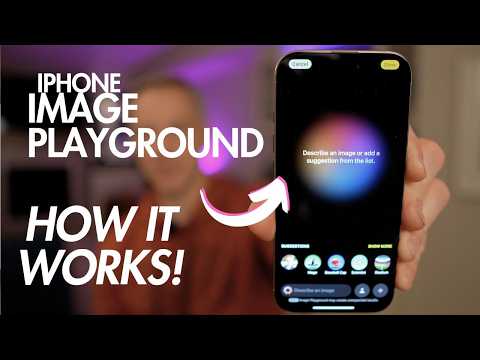
For users of the iPhone 17 Pro Max, the 48MP telephoto lens integrates directly with Visual Intelligence. By clicking and holding the Camera Control button, you can point the device at an object or document to instantly extract data, identify components, or translate technical manuals in real-time. Furthermore, the Image Playground app allows for the generation of bespoke graphics; simply input a descriptive prompt, and the A19 Pro chip generates the image locally, ensuring your creative assets remain private.
AI Implementation Score
| Feature Category | Efficiency Rating | Hardware Utilization |
|---|---|---|
| On-Device LLM | 9.5/10 | A19 Pro Neural Engine |
| Contextual Siri | 9.0/10 | 12GB Unified Memory |
| Visual Intelligence | 8.8/10 | ISP + Camera Control |
| Writing Automation | 9.2/10 | System-wide Integration |
Managing Notification Priority

To reduce digital fatigue, the iPhone 17 line introduces Priority Hub. Apple Intelligence scans incoming notifications to determine urgency. To enable this, go to Settings > Notifications > Summarize Previews. The AI will group non-essential alerts into a single summary while promoting time-sensitive messages to the top of your Lock Screen. On the iPhone 17 Air, this feature is vital for maintaining a clean, distraction-free workflow on its thinner display architecture.
