
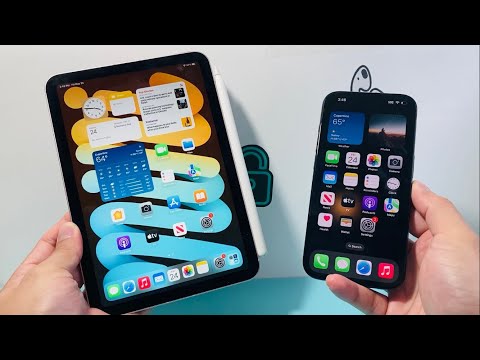
In the modern Apple ecosystem, synchronization protocols are designed to create a seamless "Hand-off" experience. However, for power users managing distinct workflows on an iPhone and an iPad, this automated data mirroring can lead to storage congestion and privacy overlaps. Decoupling these devices requires a granular approach to iCloud configuration and system settings.
Deactivating Global iCloud Integration
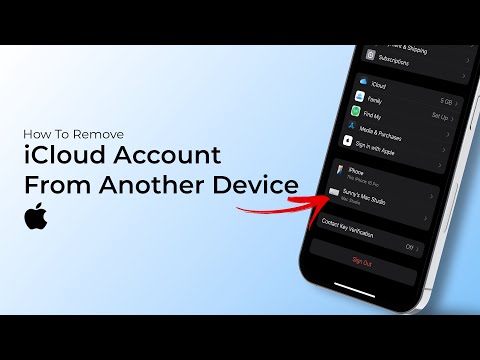
The most direct method to unsync an iPad from an iPhone is to manage the Apple ID settings. If you wish to keep the same account but stop data flow, navigate to Settings > [Your Name] > iCloud. Under the "Apps Using iCloud" section, toggle off specific switches for Photos, Contacts, Calendars, and Notes. For a total separation of environments, signing out of the Apple ID on the iPad is the most definitive software solution, though this disables Find My and App Store updates.
Breaking the iMessage and FaceTime Chain
One of the primary frustrations for users is receiving simultaneous notifications across all devices. To isolate communication streams, go to Settings > Messages > Send & Receive on your iPad. Uncheck the phone number and email address associated with your iPhone. Similarly, navigate to Settings > FaceTime and disable the "FaceTime" toggle or uncheck the shared identifiers. This ensures that the iPad functions as a standalone media or work device without interrupting your mobile communication flow.
Stopping Automatic App and Update Downloads
Apple’s automation logic assumes that if you download an app on your iPhone, you want it on your iPad. To override this AI-driven distribution, go to Settings > App Store. Under the Automatic Downloads header, toggle off Apps and App Updates. This prevents your iPad storage from being cluttered by iPhone-specific applications, allowing for a more curated, task-specific software library.
Disabling Handoff and Universal Clipboard
The Handoff feature uses proximity and iCloud status to allow users to start a task on one device and finish it on another. While efficient for some, it can be a distraction in a multi-tasking AI workflow. To disable this, navigate to Settings > General > AirPlay & Handoff and toggle off Handoff. This effectively severs the active software link between the iPad and iPhone, preventing the "Continuity" pop-ups in the iPad's App Switcher.
AI Implementation Score
| Metric | Score (1-10) | Notes |
|---|---|---|
| Ease of Execution | 9.5 | Native iOS settings allow for instant changes. |
| Data Integrity | 10.0 | Unsyncing does not delete data; it merely stops future parity. |
| Workflow Efficiency | 8.5 | Reduces notification fatigue and optimizes storage. |
Managing Media: iCloud Photos vs. My Photo Stream
To stop photos taken on your iPhone from appearing on your iPad, go to Settings > Photos and toggle off iCloud Photos. If you still want to use the cloud for backups but don't want the sync, you must ensure "Optimize iPad Storage" is managed correctly, or simply utilize a third-party AI-driven cloud storage solution like Google Photos or Dropbox to keep the libraries physically and logically separated.
