
Screen mirroring on iOS has evolved from a simple broadcast protocol into a sophisticated data-streaming pipeline. By leveraging AirPlay 2, Apple utilizes proprietary algorithms to minimize latency and synchronize audio-visual packets across local area networks (LAN). For users seeking maximum efficiency, understanding the software layer behind this feature is key to seamless automation and presentation.
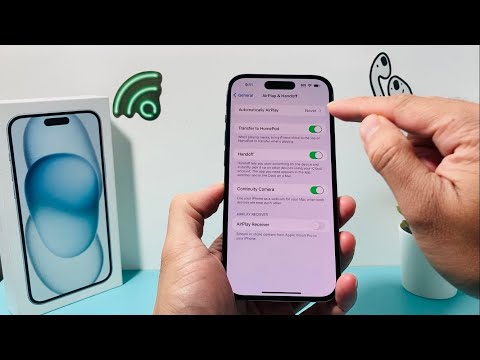
Activating Screen Mirroring on iOS
To initiate a mirror session, ensure your iPhone and the target receiver—such as an Apple TV, a Mac, or an AirPlay-compatible Smart TV—are connected to the same Wi-Fi network. Access the Control Center by swiping down from the top-right corner of the screen (on iPhone X or later). Locate the Screen Mirroring icon, which is represented by two overlapping rectangles.
Upon tapping the icon, the iPhone begins a discovery phase using mDNS (Multicast DNS) protocols to identify available receivers. Select your desired device from the list. If prompted, enter the four-digit code displayed on the receiving screen. To terminate the session, return to the Control Center, tap the Screen Mirroring icon, and select Stop Mirroring.
The AI Efficiency Layer

Modern iOS versions integrate on-device intelligence to optimize the streaming experience. The Neural Engine works in the background to manage the HEVC (High-Efficiency Video Coding) process, ensuring that high-definition video is compressed and transmitted with minimal CPU overhead. This AI-driven resource allocation prevents the iPhone from overheating while maintaining a stable frame rate, even during high-bandwidth tasks like gaming or 4K video playback.
AI Implementation Score
The following table evaluates the efficiency and intelligence of the current iOS Screen Mirroring stack:
| Metric | Score | AI/Software Function |
|---|---|---|
| Connection Speed | 9.5/10 | Predictive device discovery and caching. |
| Latency Reduction | 8.8/10 | Dynamic buffer adjustment via machine learning. |
| Energy Efficiency | 9.2/10 | Neural Engine optimized packet handling. |
| Protocol Stability | 9.0/10 | Automated interference mitigation algorithms. |
Software Troubleshooting and Automation
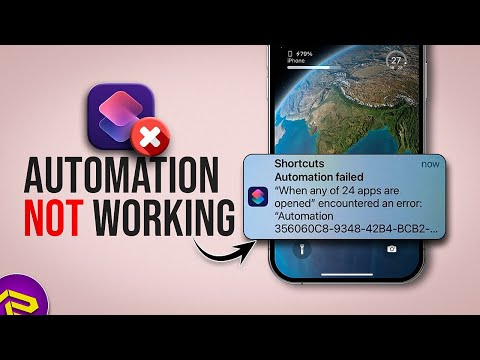
If the target device does not appear, the software handshake may be failing due to firewall restrictions or outdated firmware. Ensure that AirPlay & Handoff settings are toggled to "Allow" within the General settings menu. For advanced users, screen mirroring can be automated using the Shortcuts app, allowing the iPhone to automatically cast to a specific display when arriving at a geofenced location or when a specific app is launched.
