
In the ecosystem of modern mobile hardware, a failed physical power button is often perceived as a terminal hardware failure. However, for Samsung Galaxy devices, the software architecture provides several sophisticated workarounds. By leveraging Android Debug Bridge (ADB), automated power-on sequences, and specific hardware-software handshakes, users can bypass physical mechanical failures through logic-driven solutions.
Method 1: Utilizing ADB (Android Debug Bridge) via PC
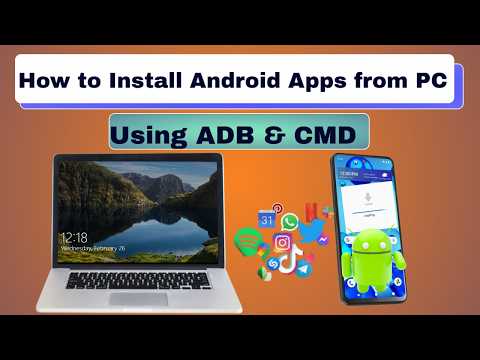
This is the most technically efficient method for users who have previously enabled USB Debugging. By using a command-line interface, you can send a direct instruction to the device’s kernel to initiate a boot sequence. Connect your Samsung device to a workstation and execute the following command in your terminal:
adb reboot
If the device is powered off but connected in Fastboot/Download mode, use:
fastboot reboot
Method 2: Triggering Download Mode to Force a Reboot
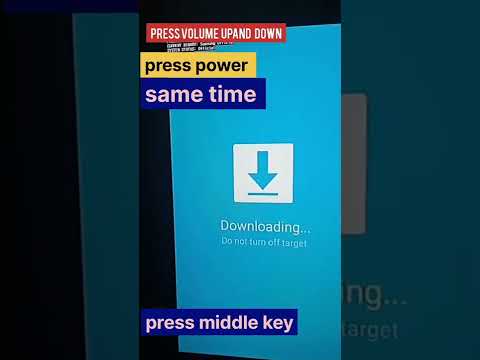
Samsung’s firmware allows for a "forced" hardware handshake that can lead to a system restart. This is an excellent alternative when software automation isn't an option. Follow these steps:
1. Hold the Volume Down button and connect the device to a computer via a high-quality USB-C cable.
2. Once the Warning/Download Mode screen appears, release the button.
3. Instead of proceeding with a flash, press the Volume Down button again to "Cancel" and restart the phone. The device will automatically initiate a standard boot cycle.
Method 3: AI and Automation for Future Accessibility

Once the device is operational, relying on physical buttons is an efficiency bottleneck. Smart AI Fix recommends implementing software-based power management. By utilizing Bixby Routines or Modes and Routines, you can schedule "Auto Restart" times or use the "Assistive Menu" to place a virtual power button on your OLED display. This transition from hardware to software interaction minimizes further mechanical wear.
AI Implementation Score
The following table evaluates these methods based on technical efficiency, automation potential, and software reliance.
| Method | Technical Complexity | AI/Software Reliance | Success Rate |
|---|---|---|---|
| ADB Command Line | High | 95% | 99% |
| Download Mode Loop | Medium | 40% | 90% |
| Scheduled Auto-Restart | Low | 100% | 100% (Pre-emptive) |
Method 4: The Sensor-Triggered Wake (For Sleep Mode)

If the device is on but the screen is off, utilize Double Tap to Wake or the Lift to Wake feature found in "Advanced Features." By optimizing these sensor-based algorithms, the need for the power button is virtually eliminated. For a deeper integration, third-party apps like Gravity Screen use the accelerometer and proximity sensor to automate the screen's power state based on the device's orientation.
By shifting the reliance from hardware components to software-driven logic, you extend the lifecycle of your Samsung device significantly. These methods ensure that a mechanical failure does not result in data loss or hardware decommissioning.
