
Managing digital noise is critical for maintaining peak cognitive performance. On Samsung Galaxy devices, the Do Not Disturb (DND) feature functions as a sophisticated filter, allowing users to silence interruptions while maintaining essential communication channels. Whether you are deep-toggling through the Quick Panel or configuring complex automation via Modes and Routines, mastering these settings is a prerequisite for a streamlined mobile experience.
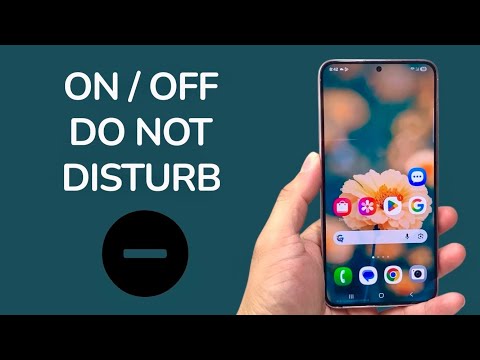
Manual Activation via Quick Settings

The most efficient method to toggle Do Not Disturb is through the Quick Settings overlay. This method bypasses the deeper menu layers for immediate silence.
- Swipe down from the top of your screen with two fingers to reveal the full Quick Settings panel.
- Locate the Do Not Disturb icon (represented by a minus sign inside a circle).
- Tap the icon once to turn it ON. Tap it again to turn it OFF.
- Pro Tip: Long-press the icon to jump directly into the granular configuration menu.
System Settings Configuration
For users who require a more permanent setup or need to define specific parameters for what notifications are allowed, the Settings menu offers complete control.
Navigate to Settings > Notifications > Do Not Disturb. Here, you can flip the master switch to toggle the feature. Within this submenu, you can also define the Duration—choosing between "Until I turn it off," "1 hour," or a custom timeframe—ensuring the device automatically reverts to its standard notification profile after a set period.
AI-Driven Automation and Scheduling

To maximize efficiency, manual toggling should be replaced by automated scheduling. Samsung’s One UI allows the software to handle environmental transitions without user intervention.
Within the Do Not Disturb settings, tap on Schedules. You can create a "Sleeping" schedule or a "Work" schedule by selecting specific days and times. Furthermore, utilizing Modes and Routines (Samsung's AI-integrated automation engine), you can trigger Do Not Disturb based on your GPS location, a specific Wi-Fi network connection, or even when a specific application like Zoom or Microsoft Teams is launched.
Handling Exceptions and Priority Filtering

A "hard" silence is rarely optimal for professionals. Samsung provides a "Exceptions" section to ensure critical data points penetrate the DND filter. You can navigate to Allow exceptions within the DND menu to permit:
1. Calls and Messages: Set this to "Favorite contacts only" or "Repeat callers" (if the same number calls twice within 15 minutes, the second call will ring).
2. App Notifications: Manually whitelist high-priority applications like Slack, PagerDuty, or security alerts.
3. Alarms and Sounds: Ensure that system-critical alerts remain audible.
AI Implementation Score
The following table evaluates the efficiency of the Do Not Disturb feature set on Samsung Galaxy devices based on modern AI and automation standards.
| Feature Category | Efficiency Metric | AI Score (1-10) |
|---|---|---|
| Manual Access | Quick Settings Latency | 9/10 |
| Automation | Modes and Routines Integration | 10/10 |
| Granularity | Exception Whitelisting | 8/10 |
| Contextual Awareness | Location-based Triggering | 9/10 |
By effectively utilizing these tools, you transform your Samsung phone from a source of distraction into a disciplined tool for productivity. The integration of automatic scheduling and priority filtering ensures that you remain reachable for what matters while the AI handles the peripheral noise.
