
The Architecture of Satellite Connectivity on iOS

Apple’s integration of Emergency SOS via Satellite represents a significant leap in mobile infrastructure, utilizing the Globalstar satellite network to provide a safety net when terrestrial cellular and Wi-Fi networks fail. However, from an efficiency and privacy standpoint, many power users and developers prefer to mitigate the active triggers or background processes associated with these high-altitude protocols. For those looking to optimize their device’s connectivity stack, understanding how to manage or disable these features is essential.
Disabling Satellite-Based SOS Triggers
While you cannot physically "remove" the satellite antenna hardware, you can disable the software triggers that initiate satellite handshakes. This is particularly useful for avoiding accidental Emergency SOS countdowns that could lead to unnecessary satellite pings.
1. Navigate to Settings on your iPhone.
2. Scroll down and tap on Emergency SOS.
3. Toggle off Call with Hold and Release and Call with 5 Button Presses.
By disabling these triggers, you ensure that the iPhone does not enter its emergency logic sequence, which is the precursor to the satellite connectivity interface. This prevents the OS from polling for satellite telemetry in high-stress or accidental-activation scenarios.
Terminating Find My Location via Satellite
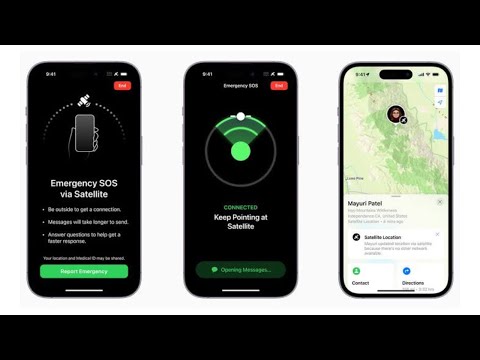
One of the more subtle background uses of satellite connectivity is the Find My integration. If you are in a location without cellular service, your iPhone can still broadcast its location via satellite to your trusted contacts. To disable this specific data stream:
1. Open Settings and tap your Apple ID at the top.
2. Select Find My.
3. Tap on Find My iPhone and ensure Find My Network is managed according to your privacy needs. Note that the satellite component is an extension of this mesh network.
Note: To completely halt the satellite-based location sharing, you must disable location sharing with specific contacts within the "Me" tab of the Find My app while in an area with no service, or ensure the device is in Airplane Mode before signal loss occurs.
AI and Automation Optimization

From an AI efficiency perspective, the iPhone uses sophisticated machine learning models to guide the user in pointing the device toward a moving satellite. By disabling the triggers, you reduce the likelihood of the A-Series Bionic chip spinning up the "Satellite Connection Assistant" UI, which is a resource-intensive process involving the neural engine for real-time spatial positioning.
AI Implementation Score
The following table assesses the impact of disabling satellite features on the device's operational efficiency and AI-driven background tasks.
| Category | Score (1-10) | Technical Impact |
|---|---|---|
| Privacy Protection | 9/10 | Reduces non-terrestrial location broadcasts. |
| Battery Efficiency | 4/10 | Minimal impact unless the SOS UI is frequently triggered. |
| System Automation | 7/10 | Prevents automated emergency protocols from overriding user intent. |
| AI Resource Allocation | 6/10 | Allocates Neural Engine cycles away from spatial satellite tracking. |
Ultimately, managing Satellite access is about reclaiming control over the iPhone’s most "invisible" communication layer. For users who prioritize manual network selection and data privacy, these steps ensure the device remains strictly within terrestrial boundaries.
