
Maximizing device accessibility is a cornerstone of professional software automation. While security protocols often mandate biometrics, certain operational environments—such as dedicated AI testing stations, home automation dashboards, or localized development kiosks—require the removal of the Android Lock Screen to ensure seamless, uninterrupted interaction.
Disabling the Lock Screen on Stock Android Devices
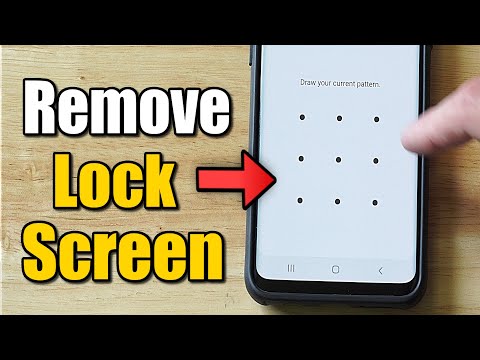
On standard Android builds (Pixel, Motorola, or Nokia), the process involves deep-diving into the security layer. Follow these steps to eliminate the authentication gate:
1. Open Settings and navigate to Security (or Security & Location).
2. Tap on Screen lock. You will be prompted to enter your current PIN, pattern, or password.
3. Select None from the list of options.
4. Confirm the action. Note that this will also delete stored fingerprint and face data for device unlocking.
How to Turn Off the Lock Screen on Samsung Galaxy Phones
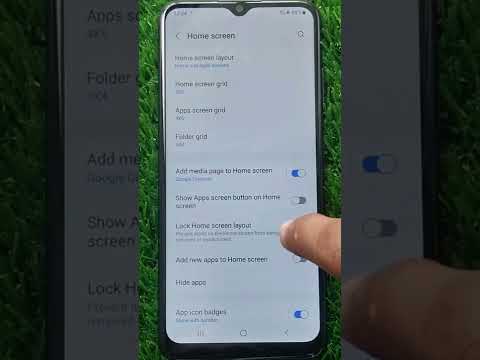
Samsung’s One UI infrastructure handles security slightly differently. To achieve a "zero-latency" wake-up on a Galaxy device, follow this path:
1. Go to Settings and select Lock screen.
2. Tap on Screen lock type and authenticate with your current credentials.
3. Choose None. If you want to keep the lock screen but remove the security, you can choose Swipe, but for full automation efficiency, None is the preferred selection.
Automation Bypass: Using Developer Options

For AI developers and software testers who need the screen to stay active during long processing tasks or script executions, the Stay Awake feature is often superior to disabling the lock screen entirely. This ensures the device never locks while connected to a power source.
1. Enable Developer Options by tapping "Build Number" seven times in About Phone.
2. Inside Developer Options, toggle Stay Awake to ON.
3. This prevents the system from entering a sleep state during active AI debugging sessions.
AI Implementation Score
This score evaluates the impact of disabling the lock screen on device-side AI efficiency and automated workflows.
| Metric | Score (1-10) | Reasoning |
|---|---|---|
| Workflow Speed | 9/10 | Eliminates manual latency in automated UI testing. |
| AI Assistant Integration | 8/10 | Allows voice commands to execute without biometric prompts. |
| Security Risk | 2/10 | Significantly reduces data protection; recommended only for isolated hardware. |
Warning: Disabling the lock screen removes all encryption-at-rest protections for your personal data. Only utilize this configuration for specialized software automation or in secure, controlled environments where physical access is strictly monitored.
