
Optimizing the iOS Auditory Ecosystem: Disabling Keyboard Clicks

In the pursuit of digital minimalism and cognitive efficiency, many power users find the default iPhone keyboard clicking sound to be an unnecessary auditory distraction. From a software optimization perspective, reducing non-essential UI feedback allows for a more focused "flow state," particularly during high-output mobile documentation or communication tasks. Disabling this legacy feature is a straightforward process within the iOS configuration layer.
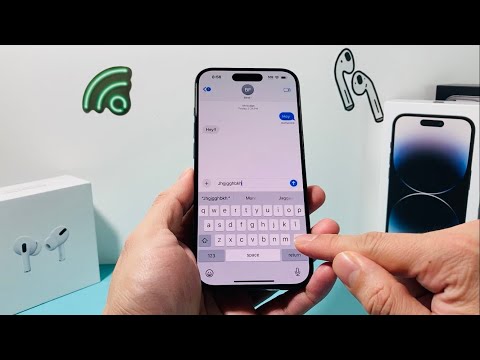
Step-by-Step Technical Guide to Disabling Keyboard Sounds
To eliminate keyboard click sounds, follow this precise navigation path within the Settings app:
1. Open the Settings application on your iPhone.
2. Navigate to Sounds & Haptics.
3. Scroll down to the system feedback section and tap on Keyboard Feedback.
4. Locate the toggle labeled Sound and switch it to the OFF position.
By toggling this off, you remove the audio trigger while maintaining the option for Haptic Feedback. For users focused on tactile efficiency, keeping Haptics enabled provides a physical confirmation of a keystroke via the Taptic Engine without polluting the acoustic environment.
Advanced Software Integration: Silent Mode and Control Center

If you require a temporary cessation of all UI sounds—including keyboard clicks—without diving into deep menu hierarchies, the Ring/Silent switch (or the Action Button on newer Pro models) serves as a hardware-level override. Furthermore, engaging Focus Modes can be automated via the iOS Shortcuts app to silence system sounds based on geolocation or time of day, enhancing the automation profile of your device.
AI Implementation Score
The following table evaluates the impact of this modification on user efficiency and the technical ease of implementation within the current iOS framework.
| Metric | Score (1-10) | Technical Rationale |
|---|---|---|
| Ease of Execution | 10 | Standard UI toggle requiring no root access or advanced scripting. |
| Cognitive Efficiency | 8 | Reduces auditory clutter, facilitating better focus during deep work. |
| Automation Potential | 6 | Can be indirectly managed via Focus Filters and the Shortcuts app. |
| Impact on Battery | 2 | Negligible impact, though disabling Haptics as well saves micro-joules. |
At Smart AI Fix, we categorize this adjustment as a "Level 1 Optimization"—low effort with a high recurring benefit for professional users who demand a streamlined, quiet, and sophisticated mobile operating environment.
