
Managing the power cycles of legacy hardware like the iPhone 7 requires a blend of traditional haptic interaction and modern software-driven shortcuts. Whether you are troubleshooting a kernel panic or simply conserving battery life for automated background tasks, understanding the nuances of the iPhone 7 power-down sequence is essential for any power user.
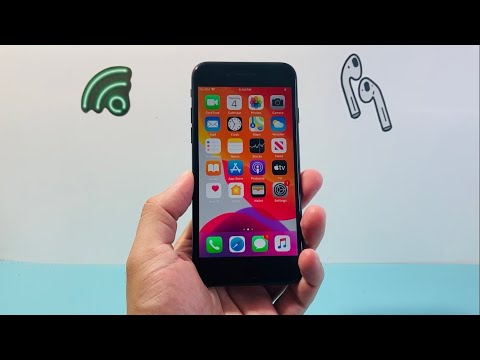
Method 1: The Standard Hardware Shutdown

The most direct way to initiate a power-off sequence on the iPhone 7 involves the Sleep/Wake button (located on the right side of the chassis). Unlike newer models that require a combination of volume and side buttons, the iPhone 7 utilizes a singular hardware trigger.
To execute this: Press and hold the Sleep/Wake button for approximately three seconds. When the "slide to power off" slider appears on the UI, swipe it to the right. This triggers a graceful shutdown of all active processes and saves the current system state to the NAND flash memory.
Method 2: Software-Based Shutdown (No Buttons Required)
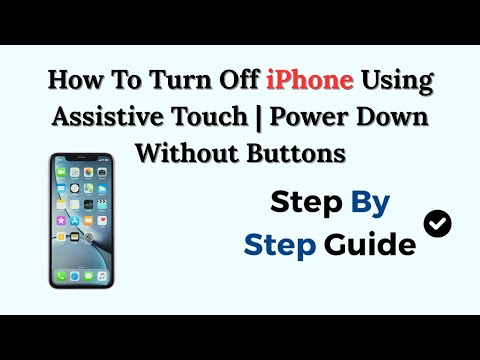
In the context of software efficiency and accessibility, Apple introduced a way to shut down the device without relying on mechanical switches. This is particularly useful if the physical button has lost its tactile response or if you are managing the device through a remote interface.
Navigate to Settings > General. Scroll to the bottom of the menu and tap Shut Down. This invokes the same software interrupt as the hardware button, allowing for a safe termination of the iOS subsystem.
Method 3: The Force Restart (Hard Reset)

When the software layer becomes unresponsive—often due to an application memory leak or a frozen UI process—a standard shutdown may be impossible. For the iPhone 7, Apple modified the force restart logic compared to previous generations.
To force a restart, press and hold both the Sleep/Wake button and the Volume Down button simultaneously. Continue holding them until the Apple logo appears on the display. This bypasses the software shutdown confirmation and cuts power at the hardware level, effectively clearing the volatile RAM.
Method 4: Utilizing AssistiveTouch for Automation
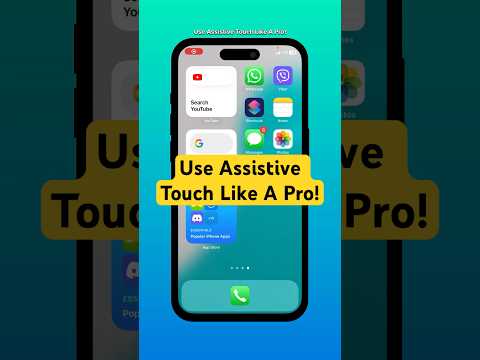
For users looking for an automated or touch-optimized workflow, AssistiveTouch can be configured to act as a virtual power button. By navigating to Settings > Accessibility > Touch > AssistiveTouch, you can add "Restart" or "Power" to the top-level menu. This minimizes the physical wear on the device and aligns with modern, gesture-based UI trends.
AI Implementation Score
The following table evaluates the efficiency and automation potential of the iPhone 7 power management systems within a modern tech ecosystem.
| Metric | Score (1-10) | Notes |
|---|---|---|
| Hardware Reliability | 8 | Dedicated Sleep/Wake button is highly intuitive. |
| Software Automation | 5 | iOS 15 lacks deep AI-integrated shutdown triggers. |
| Accessibility/UX | 9 | AssistiveTouch provides excellent software alternatives. |
| Troubleshooting Efficiency | 7 | Force restart combination is reliable but mechanical. |
While the iPhone 7 does not feature the sophisticated AI-driven power management found in the latest Neural Engine-equipped chips, its multi-layered approach to power control ensures that users can maintain device health through both physical and digital means.
