
Samsung’s integration of Google’s Gemini AI as the primary digital assistant represents a significant shift in mobile automation. While Gemini offers advanced generative capabilities, many power users find it lacks the granular device-level control and "routines" stability found in the classic Google Assistant. If you find Gemini intrusive or less efficient for your specific workflow, reverting to the legacy system is a straightforward process.
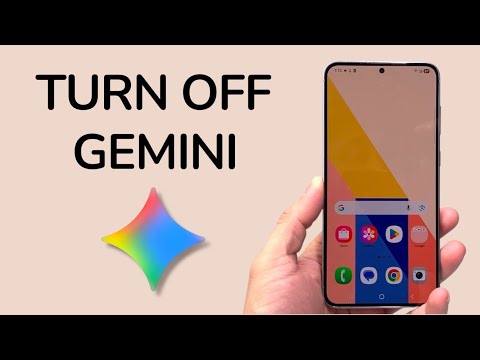
Step 1: Reverting to Legacy Google Assistant

To disable Gemini and restore the standard Google Assistant functionality on your Samsung Galaxy device, you must navigate through the Google app settings. This is the most efficient method to maintain AI utility without the generative overhead.
1. Open the Google app on your Samsung phone.
2. Tap your Profile Picture or initials in the top-right corner.
3. Select Settings.
4. Navigate to Google Assistant.
5. Scroll down to the Digital Assistants from Google section.
6. Select Google Assistant. You will be prompted with a confirmation dialog; confirm that you wish to switch back.
Step 2: Modifying Default Digital Assistant Settings
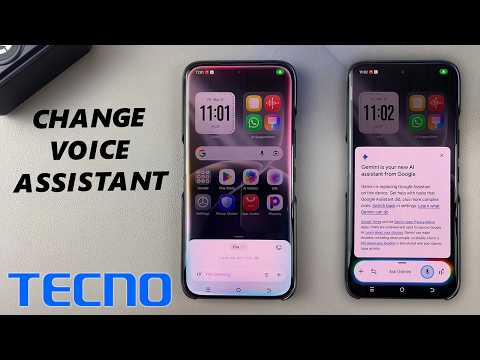
If the above method does not fully remove the Gemini trigger (such as the corner-swipe gesture or the power button long-press), you must adjust the system-level default app settings in One UI.
1. Go to Settings on your device.
2. Tap on Apps.
3. Select Choose default apps at the top of the menu.
4. Tap on Digital assistant app.
5. Ensure the Device assistance app is set to "Google." If you wish to disable AI assistance entirely, you can select "None," though this will break voice-command automation features.
Step 3: Adjusting the Side Key (Power Button)
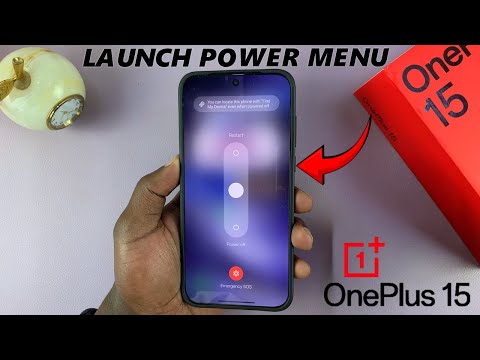
On many modern Samsung devices, Gemini or Bixby is mapped to the Side Key. To ensure no AI assistant triggers accidentally:
Navigate to Settings > Advanced features > Side button. Under the "Press and hold" section, switch the selection from "Wake Bixby" (or Gemini/Digital Assistant) to Power off menu. This restores traditional hardware functionality and eliminates unintended AI activations.
AI Implementation Score: Google Gemini on Samsung
| Metric | Score (1-10) | Technical Rationale |
|---|---|---|
| System Integration | 8/10 | Deeply embedded into One UI, replacing legacy triggers seamlessly. |
| User Control | 6/10 | Reverting requires navigating deep sub-menus within the Google app. |
| Resource Efficiency | 5/10 | Higher RAM and background data usage compared to standard Assistant. |
| Automation Depth | 7/10 | Excellent for text, but currently lacks some local hardware toggles. |
By following these steps, you regain control over your device's software environment, ensuring that your automation tools serve your specific productivity needs rather than forcing a transition to generative AI models that may not yet be fully optimized for local device management.
