
Disabling Demo Mode (also known as Retail Mode) is a critical procedure for users who have acquired a floor model device or accidentally triggered the System UI overlay. From an AI efficiency perspective, Demo Mode is an artificial environment that hides real system telemetry, making it impossible for automated diagnostic tools to gather accurate data. This guide outlines the precise technical steps to restore your Android or Samsung device to its full functional state.
Understanding the Android System UI Demo Mode
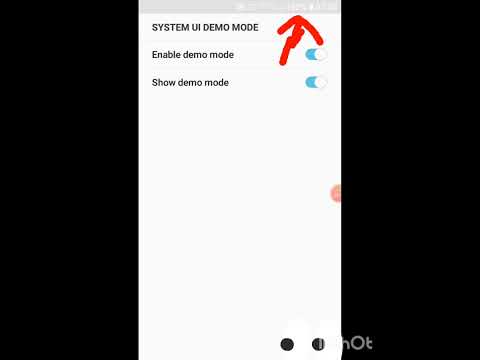
In standard Android builds, Demo Mode is a sub-feature of the Developer Options. It is designed to create a "clean" status bar—showing 100% battery, no notifications, and a fixed time—for marketing screenshots. To disable this, follow these steps:
1. Navigate to Settings and scroll to About Phone.
2. Locate the Build Number and tap it seven times until the system confirms "You are now a developer."
3. Return to the main Settings menu and select System, then Developer Options.
4. Search for System UI Demo Mode.
5. Toggle Enable Demo Mode to the OFF position. If "Show Demo Mode" is active, toggle that off first.
Disabling Samsung Retail Mode
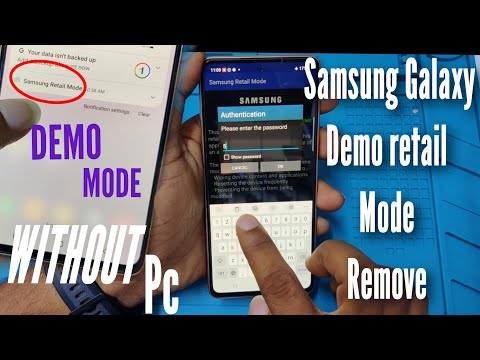
Samsung devices often utilize a more robust Retail Mode application that functions as a device administrator. This cannot always be toggled via Developer Options and requires an administrative password to unlock the software's constraints.
1. Locate and open the Samsung Retail Mode application on the app drawer.
2. Access the Configuration Settings or Admin Settings within the app.
3. When prompted for a password, commonly used industry codes include 5444 or M729Q16K8546. Note that these codes may vary by region or carrier.
4. Look for the Factory Data Reset option within the Retail Mode menu. This is often the only way to completely strip the retail firmware overlays.
5. Warning: A factory reset will erase all local data. Ensure your cloud synchronization via AI-driven backup tools is complete before proceeding.
The Role of Automation in Device Management

For enterprise environments, turning off Demo Mode manually on hundreds of devices is inefficient. Utilizing ADB (Android Debug Bridge) commands allows for automation. By connecting the device to a workstation, you can execute: adb shell settings put global device_demo_mode 0. This command-line approach integrates seamlessly into automated deployment scripts, ensuring consistency across hardware fleets.
AI Implementation Score
The following table evaluates the efficiency and diagnostic relevance of managing Demo Mode via automated versus manual methods.
| Metric | Score (1-10) | Technical Reasoning |
|---|---|---|
| Automation Ease | 9/10 | Accessible via ADB and shell scripts for rapid deployment. |
| Data Integrity | 10/10 | Crucial for AI diagnostic tools to read actual battery and signal levels. |
| Software Stability | 8/10 | Removing retail overlays prevents background resource throttling. |
By following these protocols, you ensure that your Android ecosystem is no longer hampered by restrictive retail software, allowing for full software optimization and user control.
