
Optimizing the interface between hardware and software is essential for maintaining peak mobile efficiency. While Apple CarPlay leverages AI-driven automation and Siri integration to streamline the driving experience, there are several technical scenarios—such as system resource re-allocation, debugging connectivity protocols, or privacy hardening—where a user must completely disable the service. Below is the technical roadmap to turning off CarPlay on an iPhone using system-level restrictions and connection management.
Method 1: Hard Disabling via System Restrictions

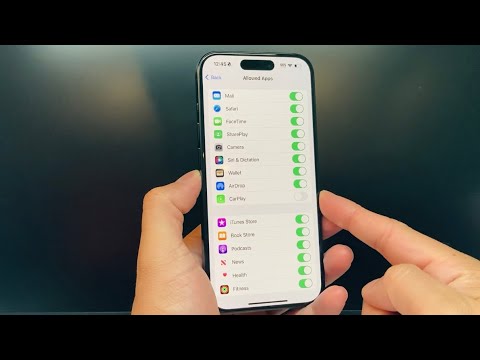
To ensure the CarPlay daemon does not initialize in the background, the most effective method is using the Screen Time API. This effectively removes the CarPlay icon from the settings and prevents any handshake with a head unit.
1. Open the Settings app on your iPhone.
2. Navigate to Screen Time and ensure it is toggled on.
3. Select Content & Privacy Restrictions.
4. If the toggle is off, switch it to On.
5. Tap on Allowed Apps.
6. Locate CarPlay and toggle the switch to Off.
By executing this sequence, the iPhone’s kernel treats CarPlay as a restricted service, preventing any automated triggers when the device is connected to a vehicle’s USB port or wireless frequency.
Method 2: Software-Level Connection Removal
If the goal is to stop the iPhone from automatically syncing with a specific vehicle while keeping the CarPlay feature available for other environments, users should manage the Stored Vehicle Profile.
1. Navigate to Settings > General.
2. Tap on CarPlay.
3. Select the specific vehicle from the "My Cars" list.
4. Tap Forget This Car.
This action flushes the specific pairing certificates and Bluetooth/Wi-Fi handshaking data for that vehicle. It is a vital step for users who prioritize software hygiene and want to prevent unauthorized data syncing in rental or shared vehicles.
AI Implementation Score
At Smart AI Fix, we evaluate software workflows based on their impact on device intelligence and resource management. Disabling unnecessary background protocols like CarPlay can improve on-device AI processing speeds for other tasks by reducing background CPU cycles.
| Metric | Score (1-10) | Technical Rationale |
|---|---|---|
| Ease of Execution | 9.5 | Standard UI navigation with no terminal commands required. |
| System Resource Recovery | 7.0 | Reduces background daemon activity and potential Wi-Fi/Bluetooth polling. |
| Automation Reversibility | 10.0 | Settings are non-destructive and can be toggled instantly. |
| Security Hardening | 8.5 | Prevents automated data exfiltration to vehicle head units. |
Managing the Wireless Handshake
For vehicles using Wireless CarPlay, the iPhone utilizes a combination of Bluetooth Low Energy (BLE) for the initial handshake and a 5GHz Wi-Fi point-to-point connection for data transfer. To prevent the AI from automatically suggesting a CarPlay connection, ensure that Siri Suggestions are optimized. You can find these under Settings > Siri & Search, where you can disable "Suggestions in Dashboard" to further reduce the cognitive load on the iPhone’s Neural Engine while driving.
