
Managing high-volume data on Android devices often leads to storage bottlenecks. While cloud solutions are prevalent, local physical backups remain the gold standard for data sovereignty and speed. To optimize this workflow, we must look at direct hardware integration and software-driven automation to ensure seamless data migration from your Android device to an external hard drive.
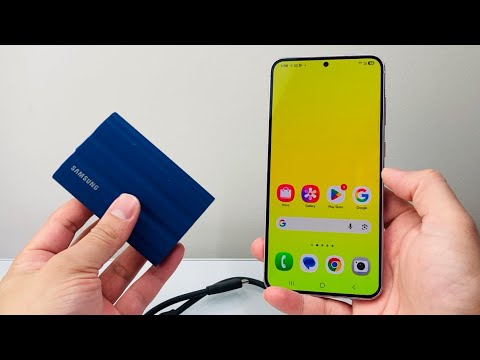
Method 1: Direct USB-C OTG Integration (The Hardware Shortcut)

Modern Android smartphones utilize the USB-C protocol, which supports On-The-Go (OTG) functionality. This allows the phone to act as a host device, power an external drive, and manage file systems directly. To execute this, you require a USB-C to USB-A adapter (if using an older drive) or a native USB-C external SSD.
Once connected, navigate to your device's native File Manager. The external drive will appear as a mounted volume. You can manually select directories—such as DCIM for photos or Documents for PDF files—and use the "Move to" command. For maximum efficiency, utilize a file manager that supports multi-pane viewing to drag and drop files across storage partitions.
Method 2: PC/Mac Mediation for Batch Processing
For massive data transfers (exceeding 100GB), using a desktop environment as a bridge is more stable. Connect your Android device to your computer via a high-quality data cable and set the USB mode to "File Transfer/MTP". Connect your external hard drive to another port on the same computer.
By using a desktop, you can leverage Robocopy (Windows) or Rsync (macOS/Linux). These command-line tools are superior to standard copy-pasting because they support checksum verification, ensuring that no data is corrupted during the transfer from the mobile device to the external platter.
Method 3: AI-Driven Automation and Sync Tools
The "Smart AI Fix" approach involves removing manual labor from the equation. Applications like Syncthing or Tasker can be configured to trigger a backup the moment an external drive is detected. By setting up a Sync Rule, the software identifies new files in specific folders and automatically mirrors them to the external drive.
Furthermore, AI-integrated file managers can now categorize your media using image recognition before the transfer. This allows you to filter and move only "Work Documents" or "Travel Photos" to specific sub-directories on your hard drive, significantly reducing the time spent on manual sorting post-transfer.
AI Implementation Score
The following table evaluates the efficiency of these transfer methods based on automation potential and technical reliability:
| Method | Efficiency Rank | AI Automation Potential | Reliability Score |
|---|---|---|---|
| Direct OTG | Medium | Low | 8/10 |
| Desktop Bridge | High | Medium (Scripts) | 9.5/10 |
| Software Sync | Highest | High (Predictive) | 9/10 |
For users prioritizing data integrity, the Desktop Bridge remains the safest route. However, for those seeking workflow efficiency, deploying an automated sync software that utilizes AI to tag and organize files during the transfer process is the recommended professional standard.
