
Capturing high-fidelity on-screen data is a fundamental requirement for mobile professionals and power users. On Samsung’s One UI ecosystem, the screenshot functionality has evolved beyond simple hardware triggers into sophisticated, AI-assisted workflows. To maximize your digital efficiency, we have identified the three most reliable methods for capturing screen data on modern Galaxy devices.
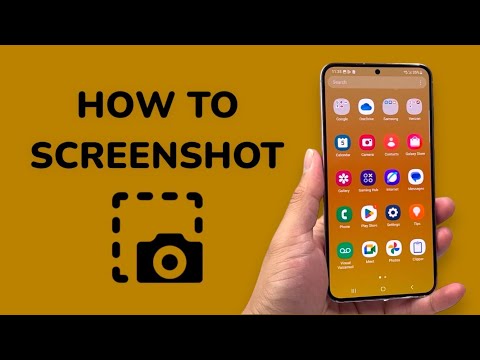
Method 1: The Hardware Synchronization Trigger

The most direct method, compatible with nearly every Galaxy device in circulation, utilizes the physical hardware interface. To execute a capture, press the Volume Down button and the Power (Side) button simultaneously. It is critical to perform a quick, synchronized press rather than holding the buttons, as a sustained hold will trigger the power-off menu or the AI assistant. Upon success, the screen will flash, and the Smart Capture toolbar will manifest at the bottom of the display, offering immediate options for AI-enhanced cropping, tagging, or sharing.
Method 2: Software-Based Gesture Recognition (Palm Swipe)
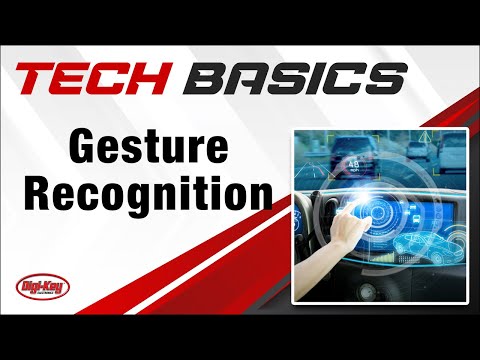
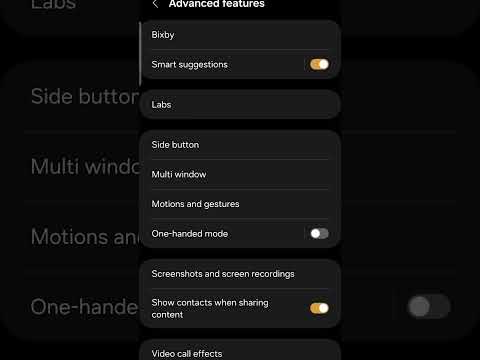
Samsung leverages its integrated sensor array to allow for a more ergonomic, gesture-based capture known as Palm Swipe. This method is ideal for users who wish to reduce mechanical wear on physical buttons. To ensure this is active, navigate to Settings > Advanced Features > Motions and Gestures and toggle the Palm swipe to capture switch. Once enabled, simply slide the edge of your palm horizontally across the display. The software utilizes proximity and touch-point tracking to distinguish this movement from standard scrolling, executing a clean capture of the current UI state.
Method 3: AI Voice Automation via Bixby or Google Assistant
For high-efficiency workflows or hands-free environments, leveraging integrated AI assistants is the optimal solution. By invoking the command "Hi Bixby, take a screenshot" or "Hey Google, take a screenshot," the device executes the capture command via a background system script. This method is particularly effective when the user interface contains dynamic elements that might disappear upon physical contact or when the user is operating in a multi-tasking automation environment. This AI-driven approach bypasses the need for physical interaction entirely, streamlining data collection.
AI Implementation Score
The following table evaluates each method based on efficiency, ease of integration, and automation potential within a professional tech environment:
| Method | Implementation Type | Efficiency Rating | Automation Potential |
|---|---|---|---|
| Hardware Buttons | Manual/Physical | 85% | Low |
| Palm Swipe | Software/Gesture | 78% | Medium |
| Voice Command | AI/Automation | 96% | High |
For users seeking the highest level of productivity, combining Voice Commands with Samsung’s "Scroll Capture" feature (available in the Smart Capture toolbar) allows for the automated stitching of long-form documents or web pages, significantly reducing the time required for manual data aggregation.
