
The Mechanism: Why the Timer Captures Multiple Photos
By default, when you set a timer on an iPhone (either 3 or 10 seconds), the iOS software is programmed to initiate a 10-frame burst. This is not a glitch; it is an automated software feature designed to ensure that at least one frame captures the subject with eyes open and optimal positioning. The Neural Engine processes these frames instantly, though it saves them as a single stack to prevent storage clutter.
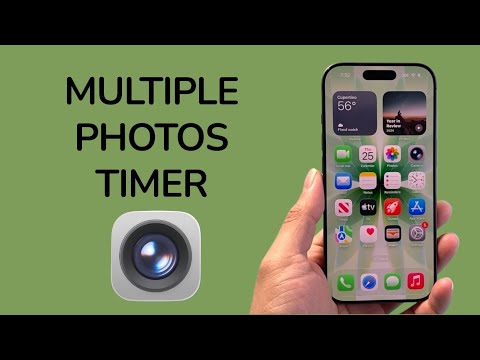
Step-by-Step Implementation

To execute a multi-photo timer sequence, follow these technical steps within the iOS environment:
1. Launch the Camera App: Ensure you are in the standard "Photo" or "Portrait" mode.
2. Access Hidden Controls: Tap the chevron (arrow) located at the top center of the screen (or swipe up on the viewfinder) to reveal the advanced settings toolbar above the shutter button.
3. Configure the Timer: Tap the Clock icon. You will be presented with three options: Timer Off, 3s, or 10s. For most automated setups, the 10s option provides the best lead time for positioning.
4. Initiate Capture: Tap the shutter button. The UI will display a countdown. Once the countdown reaches zero, the iPhone will automatically capture 10 consecutive photos using high-speed burst processing.
Managing the AI-Generated Burst
After the capture, the iOS Photos AI will attempt to identify the "Key Photo" based on sharpness and composition. To view all frames, open the photo, tap "Select..." at the bottom of the screen, and scroll through the high-resolution thumbnails. You can manually override the AI's choice by selecting your preferred frames and tapping "Done" to save them as individual files.
AI Implementation Score
The following table evaluates the efficiency and automation level of the iPhone’s timer-burst feature:
| Criteria | Score (1-10) | Notes |
|---|---|---|
| Automation Level | 9/10 | Automatically triggers a 10-shot sequence without extra input. |
| AI Image Selection | 8/10 | On-device machine learning identifies the sharpest frame effectively. |
| Software Efficiency | 10/10 | Zero lag between timer completion and burst execution. |
Pro-Tip for Advanced Users

If you wish to take multiple photos without a burst (individual exposures), you must disable the Live Photos feature before starting the timer. However, for most dynamic environments, keeping Live Photos or the default Burst Mode active is recommended, as it allows the Deep Fusion and Smart HDR algorithms more data points to produce a superior final image.
