
The paradigm of mobile interaction is shifting from simple voice-command triggers to complex, multimodal reasoning. For Android power users, the transition from the legacy Google Assistant to Gemini AI represents a significant leap in productivity and automation potential. While Google Assistant was built for discrete tasks like setting timers or checking weather, Gemini is an LLM-native engine capable of synthesizing information across your entire workspace.
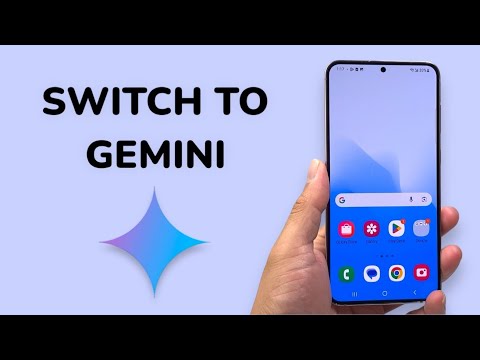
Step 1: System Requirements and Installation

Before initiating the switch, ensure your device is running Android 12 or newer with at least 4GB of RAM. The deployment of Gemini as your primary assistant requires the official Gemini app from the Google Play Store. On most modern devices, including the Samsung Galaxy S24 series and Pixel 8/9 series, Gemini may already be pre-installed as part of a system update.
Navigate to the Google Play Store, search for "Google Gemini," and install the application. If you are in a supported region, opening the app for the first time will trigger an invitation to upgrade your current assistant experience.
Step 2: Activating the Gemini Overlay

Once the app is installed, follow these steps to replace the legacy Google Assistant:
1. Open the Gemini app.
2. Tap your Profile Picture in the top right corner.
3. Select Settings.
4. Locate the option labeled "Digital Assistants from Google."
5. Toggle the selection from "Google Assistant" to "Gemini."
By confirming this choice, the system rebinds the standard invocation methods—such as saying "Hey Google," long-pressing the power button, or swiping from the bottom corners—to trigger the Gemini overlay instead of the classic Assistant interface.
Step 3: Configuring Gemini Extensions for Maximum Efficiency
To truly leverage Gemini’s capabilities, you must enable Extensions. This allows the AI to interact with your Gmail, Google Drive, and Google Maps data. This is where the "Smart AI Fix" methodology excels: instead of just asking for a weather report, you can now ask, "Find the flight details in my email and tell me the best route to the airport based on current traffic."
To enable this: In Gemini Settings, go to Extensions and toggle on the relevant Google Workspace tools. This creates a unified automated workflow that legacy voice assistants simply cannot replicate.
AI Implementation Score
| Metric | Score (1-10) | Notes |
|---|---|---|
| Ease of Setup | 9/10 | Direct Play Store integration makes it seamless. |
| Contextual Reasoning | 10/10 | Unmatched ability to understand follow-up questions. |
| Legacy Task Support | 7/10 | Some complex smart home routines still require Assistant fallback. |
| Automation Potential | 9/10 | Workspace Extensions enable high-level data synthesis. |
Managing the Transition for Samsung Users
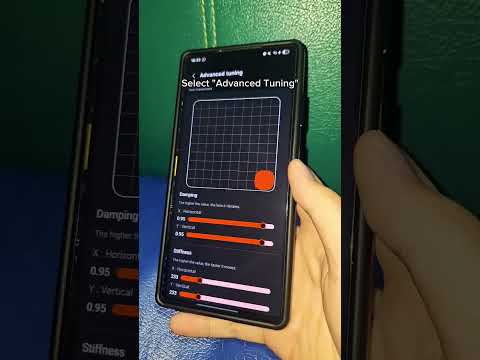
On Samsung Galaxy devices, users often face a choice between Bixby, Google Assistant, and Gemini. To ensure Gemini remains the primary handler, go to Settings > Apps > Choose default apps > Digital assistant app. Ensure that Gemini is selected as the "Device assistance app." This prevents system conflicts and ensures that the Circle to Search and AI overlay features function without latency.
While Gemini is still evolving—particularly in its handling of certain offline device commands—the efficiency gains in content drafting, email summarization, and complex information retrieval make it the superior choice for the modern professional.
