
The seamless integration within the Apple ecosystem, powered by iCloud’s synchronization algorithms, is designed to provide a unified user experience. However, for professionals seeking to compartmentalize their digital workflows or maintain privacy across devices, the default "Continuity" settings can be intrusive. Stopping the synchronization of iMessages and SMS between an iPhone and an iPad requires a systematic adjustment of the device-to-cloud handshake protocol.
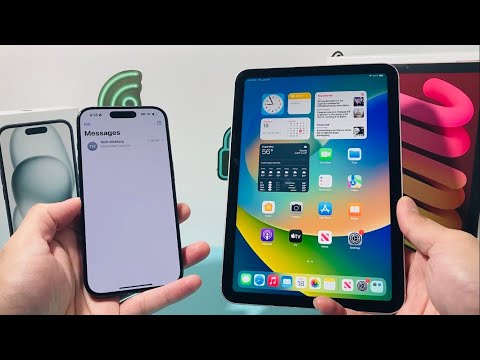
Method 1: Disabling iMessage on the iPad
The most direct method to decouple communication is to disable the iMessage service on the peripheral device. This prevents the iPad from requesting message data packets from the Apple Push Notification service (APNs).
To execute this: Navigate to Settings on your iPad. Scroll down to Messages and toggle the iMessage switch to the "Off" position. This action effectively de-registers the device from the active messaging queue while leaving the iPhone’s functionality intact.
Method 2: Adjusting 'Send & Receive' Parameters
If you wish to keep iMessage active on the iPad for specific Apple ID-based conversations but want to stop receiving messages sent to your iPhone's phone number, you must modify the reachability settings.
On your iPad, go to Settings > Messages > Send & Receive. Under the section "You can receive iMessages to and reply from," uncheck your phone number. Ensure that only your email address is selected, or deselect all options to halt the stream entirely. This maintains the software architecture for outgoing messages while filtering incoming traffic based on the specific identifier.
Method 3: Deactivating Text Message Forwarding on iPhone
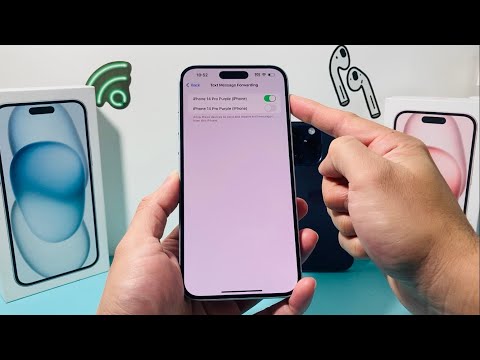
Standard SMS/MMS messages (green bubbles) are handled differently than encrypted iMessages. These are bridged from the iPhone to the iPad via the Text Message Forwarding feature. To stop this, the change must be initiated from the host device (the iPhone).
On your iPhone, navigate to Settings > Messages > Text Message Forwarding. You will see a list of authorized devices linked to your iCloud account. Toggle the switch for your iPad to the "Off" position. This prevents the iPhone’s cellular radio from relaying SMS data to the iPad’s local IP address through the shared Apple ID.
AI Implementation Score
The following table evaluates the efficiency and impact of de-synchronizing these devices within a smart ecosystem context.
| Category | Score (1-10) | Technical Rationale |
|---|---|---|
| Data Efficiency | 9.5 | Reduces background fetch cycles and localized storage bloat. |
| Privacy Integrity | 10.0 | Eliminates unauthorized message exposure on secondary screens. |
| Automation Potential | 3.0 | Low; Apple restricts third-party AI/Shortcuts from toggling iMessage states for security. |
| User Workflow Logic | 8.5 | Separates personal "on-the-go" comms from "deep work" tablet usage. |
Managing the iCloud Sync Logic

Beyond iMessage, the iCloud Messages setting serves as the source of truth for the entire message history database. If you want to delete a message on one device without it disappearing from the other, you must disable the cloud-based synchronization.
Go to Settings > [Your Name] > iCloud > Show All and toggle Messages to "Off" on the iPad. This forces the device to maintain a localized database rather than a mirrored version of the iPhone’s message repository. By managing these software-level toggles, you can optimize your hardware for high-focus tasks without the noise of continuous synchronization.
