
1. Deactivating 'Hey Siri' and the Neural Engine Trigger

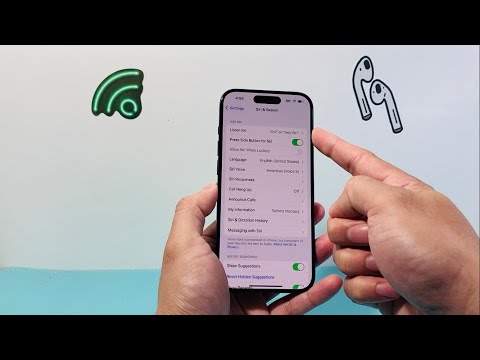
The primary mechanism behind an iPhone "listening" is the passive monitoring for the "Hey Siri" trigger phrase. This process utilizes a low-power coprocessor that constantly monitors audio input for a specific frequency pattern. To terminate this background process, navigate to Settings > Siri & Search and toggle off Listen for "Hey Siri". Additionally, disabling Allow Siri When Locked ensures the device’s microphone is not active in a standby state.
2. Managing Third-Party Microphone Permissions
While Apple’s first-party listener is often the focus, third-party applications frequently request microphone access for features that users rarely utilize. These permissions can sometimes lead to metadata collection for targeted advertising. To audit these permissions, go to Settings > Privacy & Security > Microphone. Here, you will find a granular list of every application with microphone access. It is recommended to toggle off access for any app that does not require audio input for its core technical function.
3. Disabling Dictation and Server-Side Processing

Keyboard dictation is another vector where audio data is processed. When dictation is enabled, voice snippets may be sent to Apple’s servers to improve AI recognition accuracy. To mitigate this, navigate to Settings > General > Keyboard and toggle off Enable Dictation. This action removes the localized and cloud-based voice-to-text processing engine, further isolating the hardware from ambient audio capture.
AI Implementation Score
Disabling these features involves a direct trade-off between user privacy and the efficiency of the device's proactive AI features. Below is the technical assessment of these adjustments:
| Action | Privacy Gain | AI Automation Loss | System Resource Recovery |
|---|---|---|---|
| Disable 'Hey Siri' | High | High | Low (Battery Savings) |
| Mic Permission Audit | Critical | None | Medium (Background Tasks) |
| Disable Dictation | Medium | Medium | Low |
| Reset Advertising ID | High | Low | N/A |
4. Refined Privacy via Safari and Search Suggestions
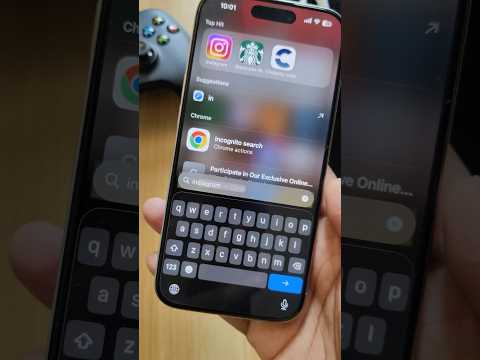
To prevent the iPhone from correlating your spoken conversations with your search queries—a common symptom of "passive listening"—you must address the Siri Suggestions. Navigate to Settings > Siri & Search and disable Show in Look Up and Show in Spotlight. This prevents the device from indexing your behavioral patterns and voice-derived data across the operating system’s search infrastructure.
5. Strategic Hardware Awareness

From a technical standpoint, the only way to ensure 100% audio isolation is the software-level kill switch provided by Apple's App Tracking Transparency (ATT) framework. Ensure that under Settings > Privacy & Security > Tracking, the option Allow Apps to Request to Track is disabled. This limits the ability of apps to link audio-derived data with your unique device identifier, effectively breaking the loop of hyper-targeted advertising.
