
The integration of Google’s Natural Language Processing (NLP) within Samsung’s One UI ecosystem represents a significant leap in mobile automation. For power users, activating "Hey Google" is not merely about voice commands; it is about establishing a low-latency bridge between the user and their smart home, productivity suite, and device hardware. Optimizing this setup ensures that the Google Assistant remains responsive even during high-compute tasks.
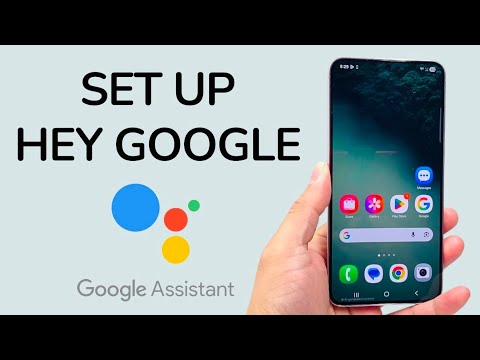
Step 1: Synchronizing the Google Ecosystem

To initiate the setup, ensure your Samsung device is running the latest firmware to avoid API conflicts. Open the Google App and tap your profile icon in the top-right corner. From there, navigate to Settings and select Google Assistant. This interface is the central hub for managing AI-driven interactions on your device.
Step 2: Configuring Voice Match Calibration
Within the Assistant menu, select Hey Google & Voice Match. Toggle the switch to On. The system will prompt you to calibrate your voice model. This step is critical for biometric accuracy; the AI creates a unique vocal fingerprint to prevent unauthorized triggers. Speak clearly in a neutral environment to ensure the machine learning algorithm captures the nuances of your frequency and cadence.
Step 3: Permission Layering and Lock Screen Automation
To maximize efficiency, you must allow the Assistant to function while the device is locked. Navigate to the Lock Screen settings within the Assistant menu and enable Assistant responses on lock screen. By doing so, you bypass the friction of manual biometric authentication for non-sensitive tasks, significantly increasing your automation throughput.
AI Implementation Score: Google Assistant on Samsung
| Category | Score (1-10) | Technical Reasoning |
|---|---|---|
| Voice Recognition Accuracy | 9.2 | Utilizes advanced neural networks for high-precision vocal fingerprinting. |
| Response Latency | 8.5 | Optimized for Snapdragon/Exynos chipsets, though network speed remains a variable. |
| Ecosystem Integration | 9.5 | Seamless control over IoT devices and Google Workspace applications. |
| Automation Potential | 8.8 | Supports complex "Routines" that execute multiple software triggers simultaneously. |
Advanced Optimization: Language and Output
For users operating in multilingual environments, navigating to Languages within the Assistant settings allows for secondary language recognition. This ensures the AI engine does not fail when switching between linguistic syntaxes. Furthermore, set the Speech Output to "Full" to ensure the AI provides verbal confirmation of executed scripts, which is vital for eyes-free operation in professional workflows.
