
Apple’s release of iOS 17 introduces a significant paradigm shift in cognitive accessibility through a feature known as Assistive Access. This high-level interface abstraction is designed to reduce the cognitive load on users by distilling the iPhone and iPad experience down to its core functional essence. At Smart AI Fix, we view this as a masterclass in UI automation and software streamlining, allowing for a highly personalized, "frictionless" mobile environment.
Understanding the Architecture of Assistive Access
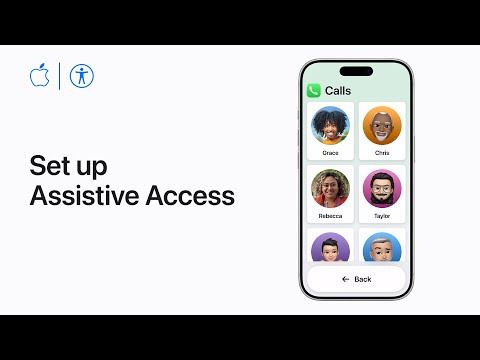
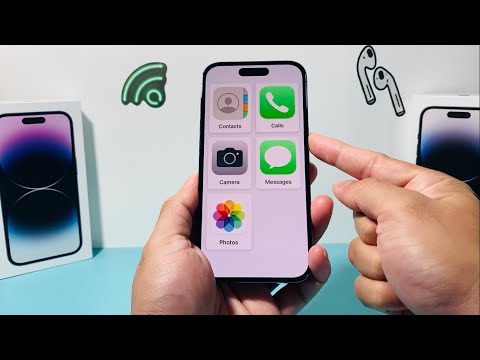
Assistive Access is not merely a "lite mode" or a skin; it is a distinct execution layer that sits atop iOS 17. It allows administrators or users to select a specialized set of apps—specifically Calls, Camera, Messages, Music, and Photos—which have been redesigned with high-contrast buttons, large text, and simplified navigation flows. From a technical perspective, this feature utilizes UI virtualization to replace the standard SpringBoard with a grid-based or row-based layout, effectively automating the removal of digital clutter.
Step-by-Step Configuration Workflow
To deploy this streamlined interface, ensure your device is updated to iOS 17 or iPadOS 17. Follow these technical steps to initiate the setup:
1. Navigate to System Settings: Open the Settings app and select Accessibility.
2. Initialize Assistive Access: Scroll to the "General" section and tap on Assistive Access. Select Set Up Assistive Access.
3. Define the User Experience: You will be prompted to choose between two layout formats: Rows (for high-readability lists) or Grid (for visual emphasis). We recommend the Grid layout for users who rely on visual recognition over text processing.
4. Application Provisioning: Select the specific apps you wish to permit within the sandbox. During this stage, you can customize individual app permissions, such as limiting the Camera app to only "Photo" mode or restricting Messages to specific contacts.
5. Security and Validation: Establish an Assistive Access Passcode. This is distinct from the device passcode and acts as a firewall to prevent the user from accidentally exiting the simplified environment into the full OS.
AI Implementation and Efficiency Score
The efficiency of Assistive Access lies in its ability to automate the exclusion of non-essential background processes and notifications, providing a focused "Deep Work" or "Simplified Living" environment. Below is our Smart AI Fix assessment of the feature's technical impact:
| Metric | Score (1-10) | Technical Justification |
|---|---|---|
| Ease of Deployment | 9/10 | Native integration requires no third-party software. |
| Interface Abstraction | 10/10 | Complete removal of UX friction and complex gestures. |
| System Resource Efficiency | 8/10 | Lowered GPU demand due to simplified visual elements. |
| Automation Potential | 7/10 | Excellent for dedicated-use hardware automation. |
Exiting and Modifying the Environment

To exit Assistive Access or modify the provisioned apps, triple-click the Side button (or Home button on older models) and enter the dedicated Assistive Access Passcode. This allows the administrator to return to the standard iOS 17 interface instantly, making it a highly versatile tool for multi-user scenarios or specialized hardware deployments.
By leveraging Assistive Access, users can transform a complex smartphone into a highly efficient, automated communication terminal, proving that in the era of AI and complex software, simplicity is the ultimate sophistication.
