
Mastering iMessage Screen Effects: The Laser Protocol

Apple’s iMessage ecosystem integrates sophisticated Natural Language Processing (NLP) and UI animations to enhance digital communication. Sending a message with the laser special effect is not just a cosmetic feature; it is an exercise in utilizing the device's built-in automation triggers to improve user engagement. Whether you are using manual triggers or automated "Easter egg" keywords, the process relies on the Force Touch/Long-Press logic within the iOS Messages framework.
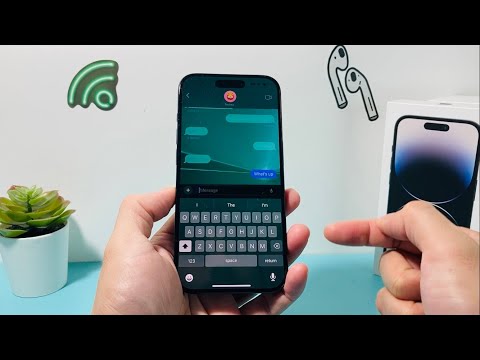
How to Manually Trigger the Laser Effect

To send a message with the laser effect manually, follow these precise steps to access the "Send with Effect" secondary menu:
1. Open the Messages app and select a contact using an iPhone (the effect only functions via iMessage, indicated by blue chat bubbles).
2. Type your desired text or insert an emoji into the text field.
3. Long-press the blue "Send" arrow (upward-pointing icon). This action bypasses the standard delivery protocol and opens the effects overlay.
4. At the top of the screen, toggle from "Bubble" to the "Screen" tab.
5. Swipe from right to left until you reach the Laser Effect. You will see a preview of haptic-synced light beams scanning the interface.
6. Tap the Send button to finalize the delivery.
AI and Automation Triggers: The "Pew Pew" Efficiency
For users looking for maximum efficiency, Apple has integrated on-device intelligence to recognize specific trigger phrases. This automation bypasses the need for manual menu navigation. By simply typing "Pew Pew" and hitting send, the iOS firmware automatically interprets the intent and attaches the laser screen effect to the outgoing packet. This is a prime example of Intent Recognition software streamlining the user experience through linguistic shortcuts.
AI Implementation Score
The following table evaluates the efficiency and technological integration of the iMessage laser effect feature within the Apple ecosystem:
| Metric | Score (1-10) | Technical Reason |
|---|---|---|
| User Effort Efficiency | 9/10 | Automated "Pew Pew" trigger eliminates 4 manual steps. |
| NLP Intent Accuracy | 10/10 | High-precision keyword matching for specific visual triggers. |
| Haptic Integration | 8/10 | Taptic Engine synchronization with visual laser bursts. |
| Cross-Platform Compatibility | 2/10 | Proprietary protocol; fails to render on RCS/SMS. |
Optimizing the Visual Experience

To ensure the recipient experiences the effect as intended, ensure that "Reduce Motion" is disabled in the iPhone's Accessibility settings. If this toggle is active, the OS prioritizes battery efficiency and UI stability over animation rendering, which may result in the laser effect being delivered as a static text bubble. From a Smart AI Fix perspective, keeping your iOS updated to the latest firmware ensures that the haptic feedback profiles are correctly calibrated for the most immersive automated response.
