
The screenshot has evolved from a simple static image capture into a vital data-retrieval tool within the Android ecosystem. As we move toward more integrated AI workflows, understanding the nuances of capturing, processing, and automating on-screen information is essential for maximizing productivity. Whether you are using a stock Android device or a Samsung Galaxy with One UI, the methods vary in efficiency and automation potential.
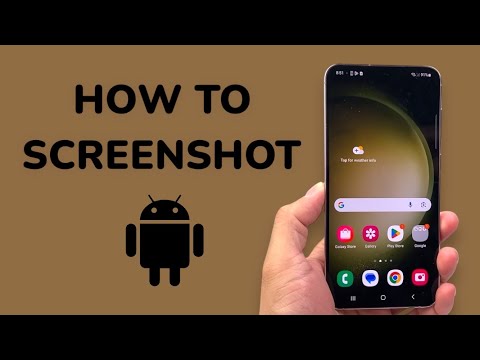
1. The Universal Hardware Trigger
For the vast majority of Android devices, the foundational method remains the hardware button combination. To capture your screen instantly, press the Power and Volume Down buttons simultaneously. This triggers a kernel-level command that freezes the current UI frame and saves it to your local storage. On modern versions of Android, this action generates a floating toolbar, allowing for immediate AI-powered cropping or markup before the file is committed to the gallery.
2. Samsung-Specific Enhancements: Palm Swipe and Edge Panels
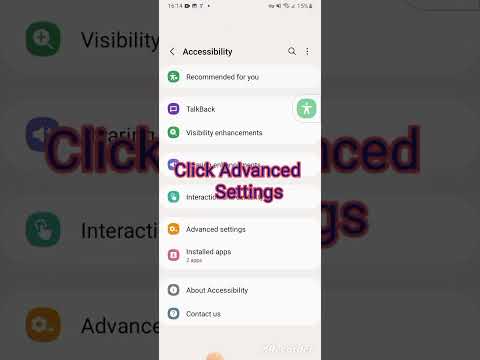
Samsung has optimized the screen capture process through proprietary software layers. The Palm Swipe to Capture gesture allows users to take a screenshot by sliding the edge of their hand across the screen. To enable this, navigate to Settings > Advanced Features > Motions and Gestures. Additionally, the Smart Select tool found in the Edge Panel allows for non-rectangular captures and the ability to pin fragments of information to the top of the screen—an essential feature for cross-referencing data without switching apps.
3. AI Assistant Integration for Hands-Free Capture

Leveraging Google Assistant or Bixby represents the most efficient path for users engaged in multi-tasking or those requiring accessibility workarounds. By using the voice command, "Hey Google, take a screenshot," the OS executes the capture without physical input. This is particularly useful when the UI element you are trying to capture is transient or disappears upon physical contact with the device buttons.
4. Capturing Long-Form Content with Scrolling Screenshots

Static captures are often insufficient for technical documentation or long-thread conversations. Android’s "Capture More" feature (introduced natively in Android 12) automates the stitching process. After taking an initial screenshot, select the "Capture More" button in the preview overlay. The system then utilizes image recognition algorithms to scroll and stitch subsequent frames into a single, continuous vertical image, maintaining aspect ratio and legibility.
AI Implementation Score
The following table evaluates the efficiency and automation capabilities of various screenshot methods on Android:
| Method | Efficiency Rating | Automation Potential | AI Integration |
|---|---|---|---|
| Hardware Buttons | High | Low | Minimal |
| Voice Assistant | Medium | High | Maximum |
| Palm Swipe (Samsung) | High | Low | N/A |
| Scrolling Capture | High | Medium | High (Stitching Logic) |
5. Post-Capture Workflow and OCR Automation

The true power of a modern Android screenshot lies in Optical Character Recognition (OCR). Once a capture is made, utilizing Google Lens directly from the screenshot preview allows you to extract text, translate languages in real-time, or search for visual matches across the web. For developers and power users, this turns a simple image file into a dynamic data source that can be piped into automation tools like Tasker or Zapier for further processing.
