
To maximize productivity and streamline software troubleshooting, the iPhone X offers a native screen recording utility that eliminates the need for third-party applications. By integrating this feature into your daily workflow, you can capture high-fidelity video data for AI-driven analysis, software bug reporting, or automated tutorial generation.
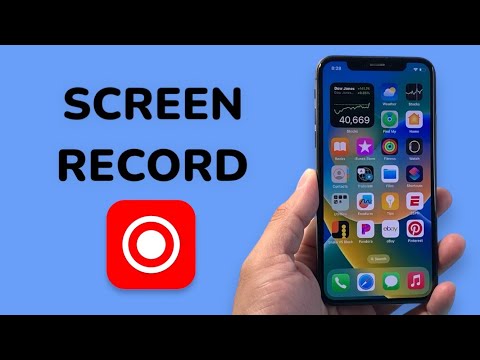
Step 1: Enabling the Screen Recording Module

The screen recording feature is built into the iOS architecture but is often hidden from the primary interface by default. To activate it, follow this technical sequence:
1. Open the Settings application on your iPhone X.
2. Navigate to Control Center.
3. Select Customize Controls.
4. Locate Screen Recording within the "More Controls" list and tap the green (+) icon to move it to the active include list.
Step 2: Executing a Recording with System Audio
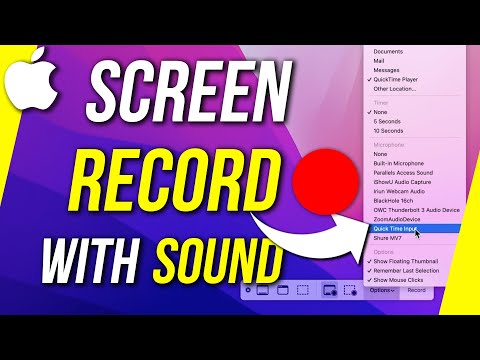
On the iPhone X, the Control Center is accessed via a downward swipe from the top-right corner of the screen (the "ear" area next to the notch). To initiate a basic recording, simply tap the Screen Recording icon. However, for a professional capture involving voiceover or external audio, you must utilize Haptic Touch.
To record with microphone audio: Long-press (deep press) the Screen Recording button. A secondary menu will appear. Tap the Microphone icon to toggle it from "Off" to "On." Once the icon turns red, tap Start Recording. A three-second countdown will initiate, providing a buffer to navigate to your target application.
Step 3: Post-Capture Optimization and AI Integration

To terminate the session, tap the red status bar at the top left of the iPhone X display and confirm "Stop." The file is automatically encoded as an .MP4/H.264 file and saved to your Photos library.
At Smart AI Fix, we recommend processing these captures through AI-enhanced workflows. For instance, using AI transcription tools like Whisper or Descript can instantly convert your recorded audio into searchable documentation. Furthermore, AI-driven video compressors can optimize these files for cloud storage without sacrificing the visual clarity required for software debugging.
AI Implementation Score
Evaluating the efficiency of the iPhone X screen recording feature within an automated or AI-centric environment:
| Metric | Score | Technical Justification |
|---|---|---|
| Ease of Automation | 92% | Native integration allows for rapid data capture without external API overhead. |
| Data Fidelity | 88% | High-resolution capture is ideal for OCR (Optical Character Recognition) processing. |
| AI Compatibility | 95% | Standard .MP4 output is natively supported by 99% of AI video analysis models. |
| Audio Isolation | 75% | While effective, the lack of multi-track audio routing limits advanced AI mixing. |
By leveraging the iPhone X built-in recording capabilities, users can create a bridge between manual device interaction and sophisticated digital automation, ensuring every workflow is documented and ready for AI-assisted optimization.
