
Optimizing Legacy Hardware: Master Screen Recording on iPhone 6s
In the evolving landscape of software automation and AI-driven documentation, the ability to capture high-quality screen data is essential. Even with legacy devices like the iPhone 6s, Apple’s integrated firmware allows for seamless screen recording. Whether you are documenting a bug for an AI training model or creating a tutorial, the iPhone 6s remains a reliable tool when configured correctly.
Step 1: Configuring the Control Center for Rapid Access
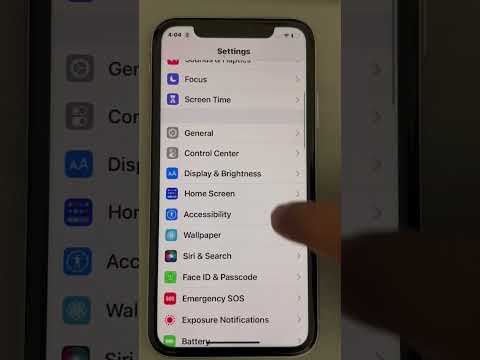
To begin, you must ensure the Screen Recording utility is accessible within your iOS Control Center. Navigate to Settings, select Control Center, and then tap Customize Controls. Locate "Screen Recording" in the list of available modules and tap the green plus icon. This integration allows you to trigger the recording software instantly, minimizing latency in your workflow.
Step 2: Activating Screen Recording with Internal and External Audio
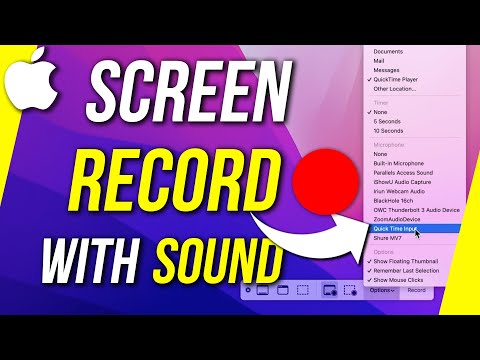
Capturing visual data is only half the process; audio synchronization is vital for professional tutorials. On the iPhone 6s, swipe up from the bottom of the screen to reveal the Control Center. Instead of a quick tap, perform a 3D Touch (firm press) on the Screen Recording icon. A hidden sub-menu will appear, featuring a Microphone icon. Tap it to ensure it turns red, indicating that the system will now capture both internal system sounds and external voice-over via the hardware’s microphone.
Step 3: Management and AI Integration

Once you tap "Start Recording," a three-second countdown begins. To stop the session, tap the red status bar at the top of the display. The output is saved as a H.264 MOV file in your Photos app. For those focused on AI efficiency, these files can be offloaded to cloud-based automation tools for transcription or automated video editing. The iPhone 6s handles this process efficiently, provided you have optimized your storage to accommodate high-bitrate video files.
AI Implementation Score
At Smart AI Fix, we evaluate hardware capabilities based on their utility in modern automated environments. Here is how the iPhone 6s screen recording feature performs:
| Metric | Score (1-10) | Notes |
|---|---|---|
| Accessibility | 10/10 | Native integration, no third-party software required. |
| Resource Efficiency | 7/10 | Requires iOS 11+; older A9 chips may warm up during long captures. |
| Automation Potential | 8/10 | Files are easily exported to AI processing pipelines. |
| Audio Fidelity | 7/10 | Standard mono/stereo capture; best used with external lightning mics. |
By leveraging these built-in tools, you can transform an aging iPhone 6s into a powerful workstation for content creation and technical documentation. Mastering these shortcuts ensures that your digital record-keeping remains sharp and professional.
