
Intrusive pop-up ads on Android and Samsung devices are rarely just a nuisance; they are often the result of inefficient software background processes or unauthorized "Display Over Other Apps" permissions. As mobile OS architectures become more complex, resolving these issues requires a systematic approach to auditing app behaviors and leveraging built-in automation features to maintain a clean user interface.
1. Auditing Chrome’s Heuristic Filters
The majority of mobile pop-ups originate from the browser. Google Chrome utilizes a set of internal filters to block known malicious scripts, but these can be bypassed if the "Pop-ups and redirects" flag is toggled incorrectly. To secure your browsing environment:
Open Chrome, tap the three-dot menu, and navigate to Settings. Under the Advanced section, select Site settings. Locate Pop-ups and redirects and ensure the toggle is set to Blocked. Furthermore, enable Intrusive Ads blocking to allow Chrome’s AI-driven filtering system to automatically suppress ads on sites known for deceptive practices.
2. Managing "Display Over Other Apps" Permissions
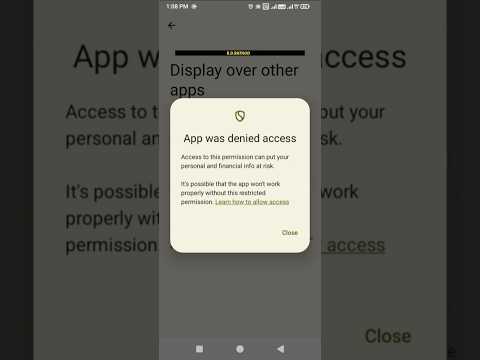
If you are seeing ads while on your home screen or within other applications, a third-party app likely has the "Appear on top" permission. This is a common vector for adware. To identify and revoke this access:
Navigate to Settings > Apps. Tap the three-dot menu (or "Special Access") and select Special access > Appear on top (or Display over other apps). Review the list for any apps you do not recognize or that shouldn't require this functionality. Disable the permission for any suspicious software. System automation tools and UI overlays are the only entities that truly require this permission for efficiency.
3. Samsung One UI Ecosystem Cleanup
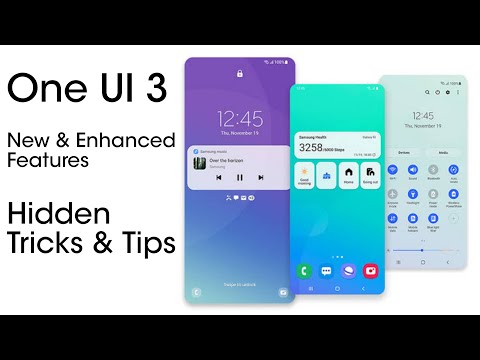
Samsung devices often include proprietary services that contribute to "Marketing Information" notifications, which users perceive as pop-ups. To automate the removal of these interruptions:
Go to Settings > Samsung Account > Security and privacy > Marketing information. Ensure the toggle is OFF. Additionally, open the Galaxy Store, navigate to Settings, and disable "Get news and special offers." This prevents the system from injecting promotional content into your notification shade via the Samsung Push Service.
4. Implementing DNS-Level Ad Filtering

For a high-efficiency, "set-it-and-forget-it" solution, you can automate ad-blocking at the network level using a Private DNS. This method intercepts ad-server requests before they even reach your browser or apps.
Go to Settings > Connections > More connection settings > Private DNS. Select Private DNS provider hostname and enter dns.adguard.com or p2.freedns.controld.com. This creates an automated firewall that filters out known ad-delivery domains globally across the device.
AI Implementation Score
The following table evaluates the efficiency of each method based on its ability to provide long-term, automated protection without manual intervention.
| Method | Implementation Difficulty | AI/Automation Efficiency |
|---|---|---|
| Chrome Site Settings | Low | High (Heuristic-based) |
| Permission Audit | Medium | Low (Manual process) |
| Samsung One UI Opt-out | Low | Medium (Policy-based) |
| Private DNS Configuration | Low | Extreme (Network-level automation) |
5. Identifying Rogue Apps via Safe Mode
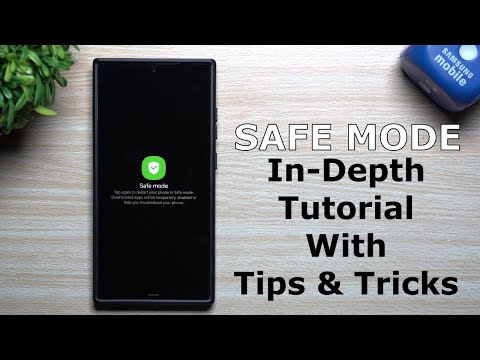
If pop-ups persist, use Safe Mode to isolate the culprit. Press and hold the Power button, then long-press the Power Off icon until the Safe Mode prompt appears. In Safe Mode, all third-party apps are disabled. If the ads stop, the issue is definitely a third-party app. You can then use the Google Play Store (My Apps & Games > Installed > Last Used) to identify which app was recently active and uninstall it immediately.
