
Managing the ecosystem between iCloud synchronization and local device storage requires a nuanced understanding of how Apple handles data handshakes. By default, iCloud is a mirroring service, not a standalone storage solution. To remove photos from the cloud while retaining them on your iPhone, you must break the sync cycle without triggering a global deletion command.
The Technical Protocol: Decoupling iCloud from Local Storage
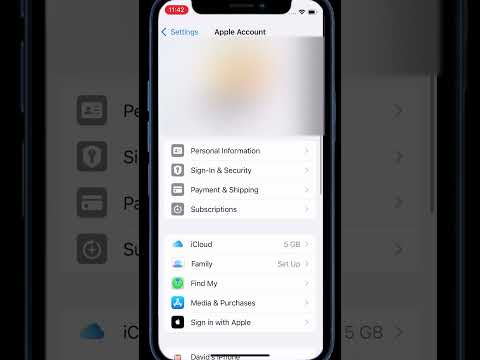
To successfully keep your high-resolution assets on your device while clearing space in your 5GB (or paid) iCloud tier, follow these precise steps to ensure data integrity:
Step 1: Verify Local Storage Capacity
Before disconnecting, ensure your iPhone has sufficient physical storage to house your entire library. Navigate to Settings > General > iPhone Storage. If your library is 50GB and you only have 10GB free, the process will fail during the download phase.
Step 2: Change Optimization Settings
Navigate to Settings > [Your Name] > iCloud > Photos. You must change the setting from "Optimize iPhone Storage" to "Download and Keep Originals." This forces the iPhone to pull full-resolution versions from the cloud to the local hardware. Wait for the status bar at the bottom of your Photos app to say "Synced with iCloud" before proceeding.
Step 3: Deactivate iCloud Photos Sync
Return to the Photos menu in iCloud settings and toggle iCloud Photos to OFF. A prompt will appear; select "Download Photos & Videos" to ensure any remaining cloud-only thumbnails are replaced with full-size files.
Step 4: Execute Cloud Deletion
Once the sync is severed, your iPhone is an isolated silo. You can now log into iCloud.com via a desktop browser and delete the photos from the web interface. This will clear your cloud storage while the copies on your iPhone remain untouched.
AI Implementation Score
At Smart AI Fix, we evaluate these manual workarounds based on their potential for automation and efficiency. Below is the score for this manual sync-decoupling method:
| Metric | Score (1-10) | Notes |
|---|---|---|
| Automation Level | 3/10 | Highly manual; requires user oversight to prevent data loss. |
| Data Integrity | 9/10 | Very safe if "Download Originals" is fully completed. |
| Storage Efficiency | 10/10 | Maximizes local hardware utility while zeroing out cloud costs. |
| AI Assistance Potential | 7/10 | Future AI agents could automate the "Download-Verify-Delete" loop. |
Alternative: Using AI-Driven Backup Software

For users looking for a more automated software solution, third-party tools like iMazing or AI-integrated cloud services (Google Photos with "Free Up Space" logic) offer more granular control. These platforms use machine learning algorithms to identify duplicate images and blurry shots, allowing you to prune your library locally before deciding what deserves a cloud backup. By shifting to a non-Apple cloud provider, you can maintain a secondary backup that doesn't use the "mirroring" logic, allowing you to delete from the cloud without affecting the iPhone’s local gallery.
Pro Tip: Always perform a physical backup to a Mac or PC using a Lightning/USB-C cable before performing major cloud synchronization changes. Hardware-level backups are the ultimate fail-safe against sync errors.
