
While the mobile industry is rapidly pivoting toward eSIM technology, the physical SIM card remains the most reliable bridge between hardware and cellular networks. For Samsung Galaxy users, ensuring a perfect physical connection is the first step toward leveraging the advanced AI-driven network optimizations integrated into One UI. A misaligned card can lead to signal dropouts and increased battery drain as the device's modem overcompensates for poor connectivity.
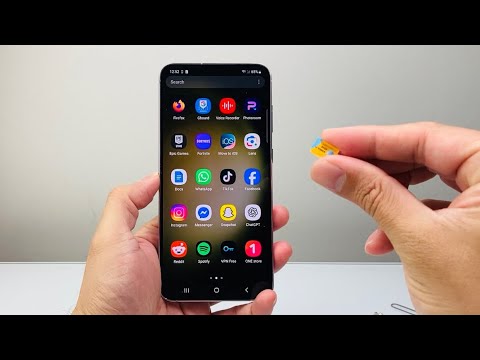
Step 1: Identify Your SIM Tray Architecture

Most modern Samsung devices, including the S24 and A-series, house the SIM tray at either the top or bottom edge of the device. Before proceeding, ensure you have a standard SIM ejector tool. In a pinch, a small paperclip works, but ensure it is thin enough to avoid damaging the internal locking mechanism. Pro Tip: Look for the tray cutout; it is a thin rectangular outline. Be careful not to mistake the circular microphone hole for the SIM eject hole.
Step 2: Ejecting the Tray with Precision

Insert the ejector tool into the small hole on the tray and apply firm, steady pressure. The tray will "pop" out slightly. Use your fingernails or the tool to pull it out completely. It is highly recommended to perform this while the phone is powered off to prevent any static discharge, though Samsung’s modern firmware is designed to handle "hot-swapping" without immediate data corruption.
Step 3: Seating the Nano-SIM
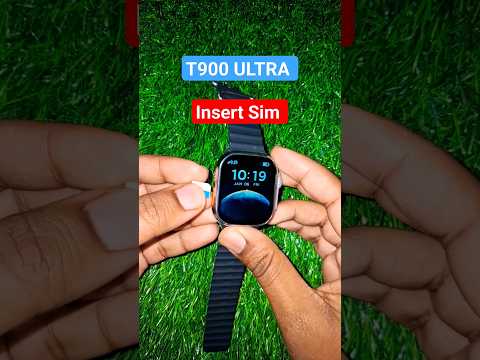
Samsung trays are designed with a specific "notched" corner. Align the gold contacts of your Nano-SIM card facing downward (toward the back of the phone for most models) and ensure the notched corner of the card matches the notch in the tray. If your device supports Dual SIM or a microSD card, ensure you are placing the primary SIM in the slot labeled "SIM 1" for optimal data prioritization by the Android OS.
Step 4: Reinsertion and AI Network Optimization

Push the tray back into the device until it is flush with the frame. Once you power on your Samsung phone, the One UI intelligence layer will detect the new ICCID (Integrated Circuit Card Identifier). Navigate to Settings > Connections > SIM manager. Here, the system uses automated algorithms to configure APN (Access Point Name) settings and optimize the modem's power consumption based on your carrier's specific frequency bands.
AI Implementation Score
The following table evaluates how much of this process is currently automated versus manual, and where AI enhances the user experience post-insertion.
| Process Phase | Automation Level | AI Integration | Efficiency Score |
|---|---|---|---|
| Physical Insertion | Manual | None | 2/10 |
| Carrier Provisioning | High | Auto-APN Config | 9/10 |
| Network Handover | Fully Automated | AI Signal Switching | 10/10 |
| Battery Optimization | High | Predictive Modem Usage | 8/10 |
By following these steps, you ensure that your hardware is correctly configured to support the software-driven efficiencies that Samsung is known for. Once the physical connection is secure, the onboard AI takes over, managing your data transitions and maintaining peak signal integrity without further manual intervention.
