
In the modern mobile ecosystem, the transition from analog to wireless audio is driven by efficiency and the seamless integration of hardware and software. For Android users, leveraging Bluetooth protocols to pair wireless headphones is no longer just a manual task; it is an optimized process facilitated by Google Fast Pair and advanced Bluetooth 5.0+ stacks. This guide outlines the most efficient methods to establish a low-latency connection between your peripherals and your Android device.
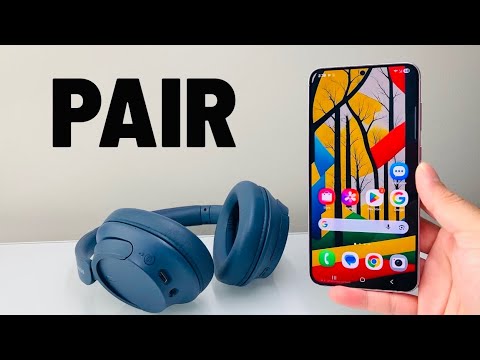
Step 1: Activate Pairing Mode on the Peripheral
Before initiating the software handshake on your Android device, the headphones must be in Discovery Mode. This state allows the device to broadcast its UUID (Universally Unique Identifier) to nearby scanners. Typically, this is achieved by holding the power or dedicated Bluetooth button for 3 to 5 seconds until the LED indicator flashes (usually blue and red). AI-integrated headphones, such as those from Sony or Bose, may provide voice prompts confirming the device is "Ready to pair."
Step 2: Utilizing Android’s Bluetooth Interface

To manually pair your device, swipe down from the top of your screen to access the Quick Settings panel. Long-press the Bluetooth icon to jump directly into the connection settings. Ensure the Bluetooth toggle is set to On. Tap on "Pair new device." Your Android system will now run a background scan for active Bluetooth signals. When your headphone model appears under "Available devices," tap the name to initiate the cryptographic handshake.
Step 3: Leveraging Automation via Google Fast Pair
For a more automated experience, modern Android versions (6.0+) utilize Google Fast Pair Service (GFPS). This AI-driven feature uses Low Energy (BLE) to detect compatible headphones in close proximity. When you put your headphones into pairing mode near an unlocked Android phone, a high-priority pop-up will appear at the top of your screen. Simply tap "Connect," and the system will handle the pairing, register the device to your Google Account, and even prompt you to download the companion app for firmware updates and EQ automation.
Troubleshooting Connection Latency

If the device fails to appear, ensure that Location Services are enabled, as Android requires this for Bluetooth scanning accuracy. Additionally, clearing the Bluetooth Legacy Cache in the System Apps settings can resolve software conflicts that prevent successful handshakes. For high-fidelity audio, ensure the LDAC or aptX codec is toggled within the Developer Options to maximize data throughput.
AI Implementation Score
The following table evaluates the efficiency and automation level of the Android Bluetooth pairing ecosystem.
| Metric | Score (1-10) | Technical Impact |
|---|---|---|
| Automation Level | 9/10 | Google Fast Pair eliminates manual menu navigation. |
| Connection Stability | 8/10 | Bluetooth 5.2+ protocols reduce interference significantly. |
| Software Integration | 9/10 | Seamless sync with Google Assistant and Find My Device. |
| Efficiency | 10/10 | Instantaneous pairing via BLE (Bluetooth Low Energy). |
By understanding these protocols, users can ensure their audio hardware operates at peak performance with minimal manual intervention, allowing the software to manage the complexities of wireless synchronization.
